
Add a Webhook
In this guide, you'll learn what webhooks are, how to set one up, how to configure triggers, filters, and payload variables, and how to use real-world webhook examples for hot lead alerts, CRM sync, and operational monitoring.
What Is a Webhook?
A Webhook lets Master Inbox automatically send data to another app in real time whenever something happens — like a prospect replying, a label changing, or an email getting disconnected. Instead of checking tools manually, Webhooks push events instantly to the systems your team already uses.
Common Use Cases
Send a Slack alert when a prospect replies
Update your CRM when a label changes
Notify ops if an email channel disconnects
Trigger workflows when a lead moves stages
Works With
Slack
CRMs (HubSpot, Pipedrive, Salesforce)
Internal dashboards
Custom automation tools
Steps
Go to Settings → Add Webhook.
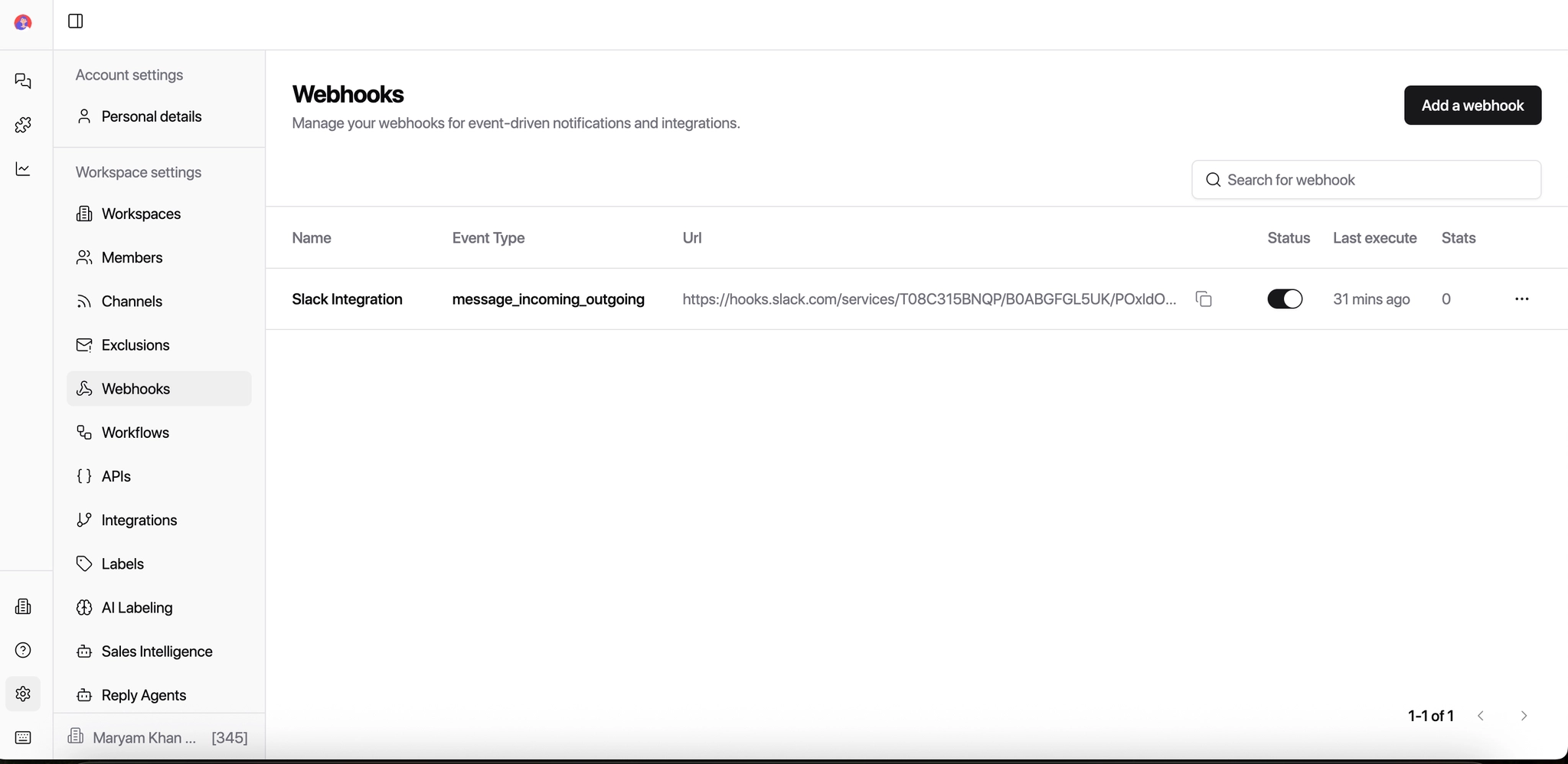
Enter: Webhook Name (e.g.,
Slack – Incoming Replies)Webhook URL
Example:
https://your-domain.com/webhook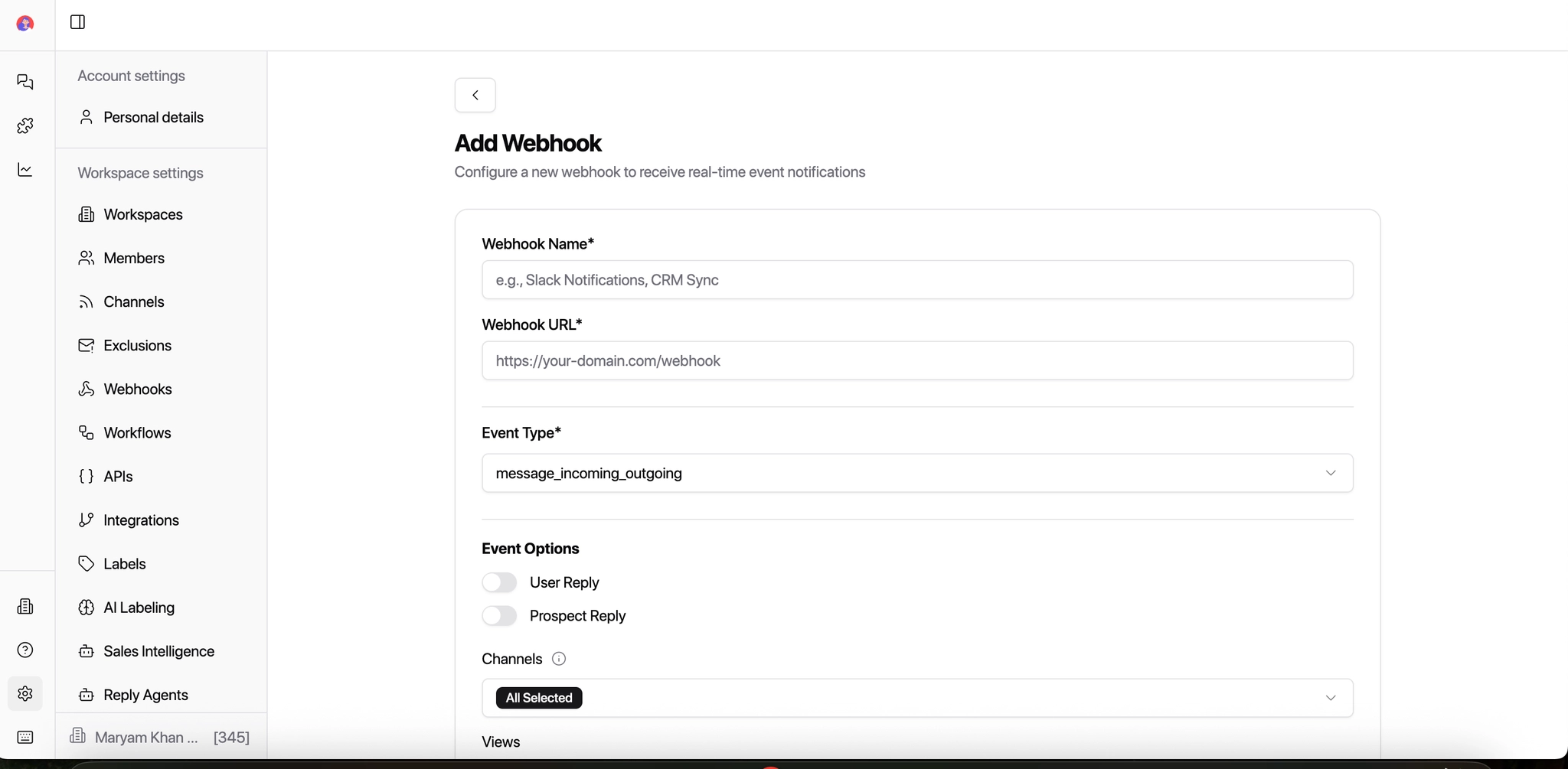
Select the Event Type you want to track.
Select what action should trigger the webhook.
Available events include:
Message Incoming (prospect reply)
Message Outgoing (your reply)
Reminder Triggered
Label Changed
Email Disconnected
Prospect List Updated
Tip: Start with Incoming Replies - this is the most commonly used webhook.
Enable the relevant triggers:
Your Reply (user replies)
Incoming Reply (prospect replies)
You can enable one or both depending on your use case.
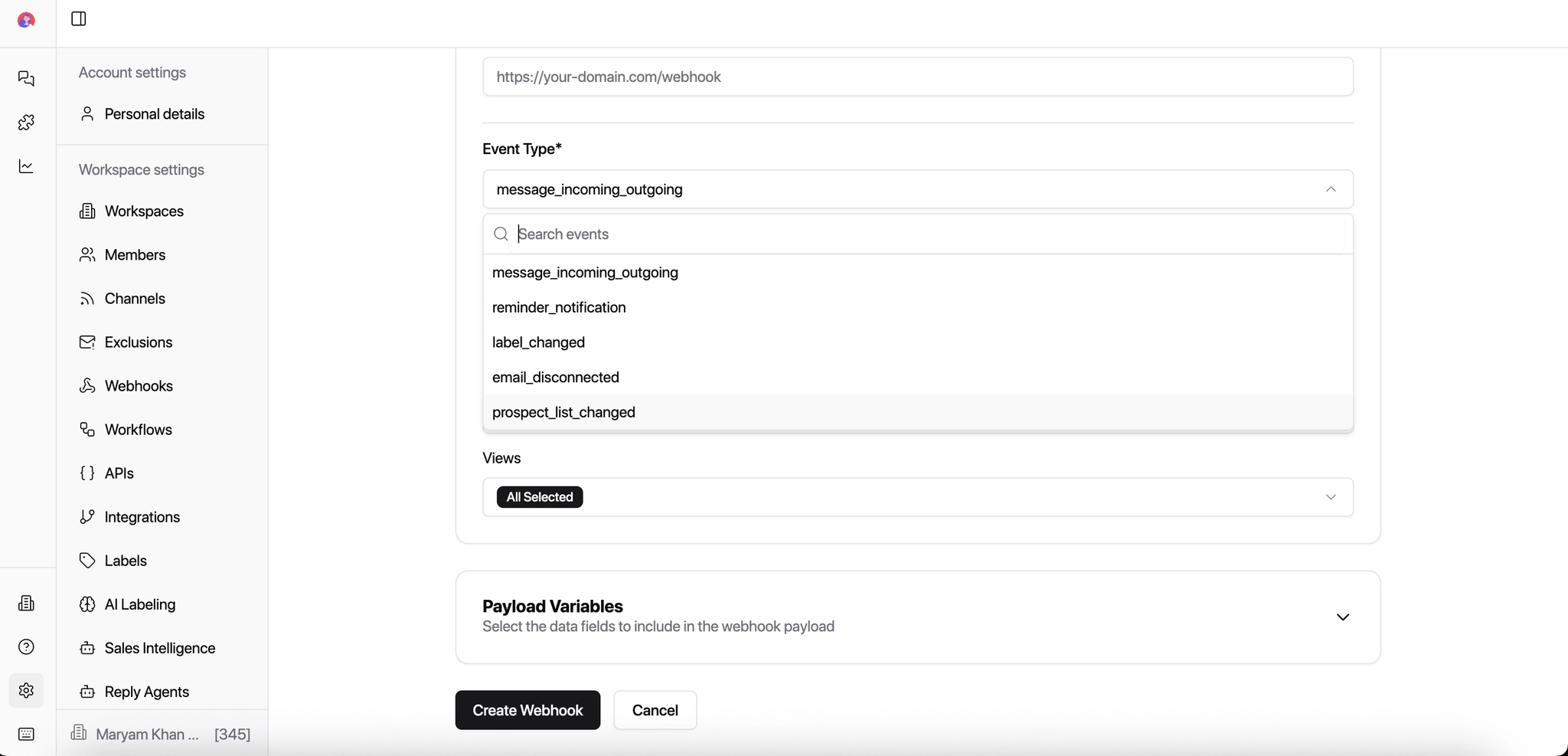
Choose the Channels the Webhook should listen to.
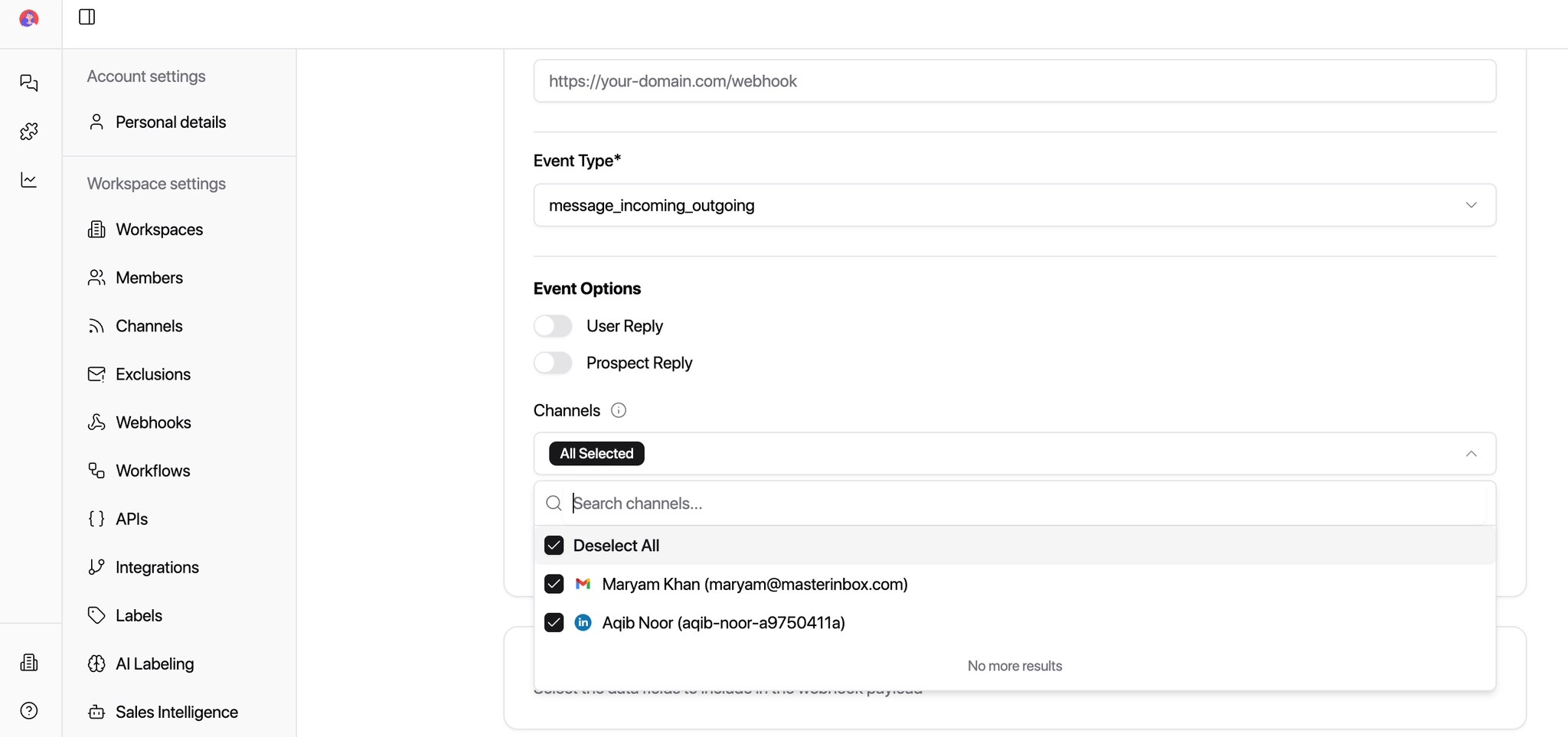
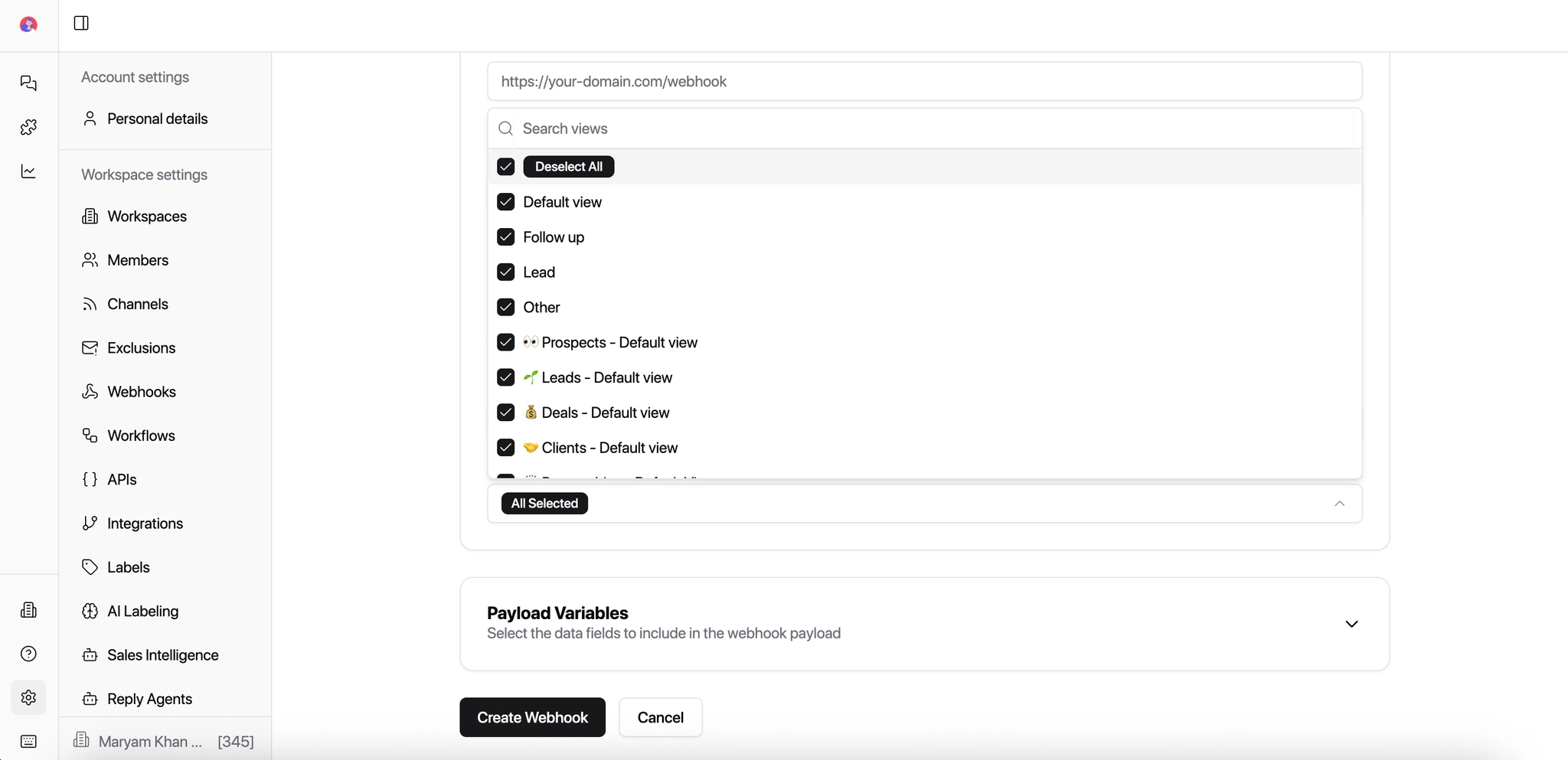
Select Views & Labels
Narrow down when the webhook should trigger by selecting:
Views (e.g., Interested, Follow-up, Hot Leads)
Labels (e.g., Interested, Objection, Client)
This ensures the webhook fires only for relevant conversations.
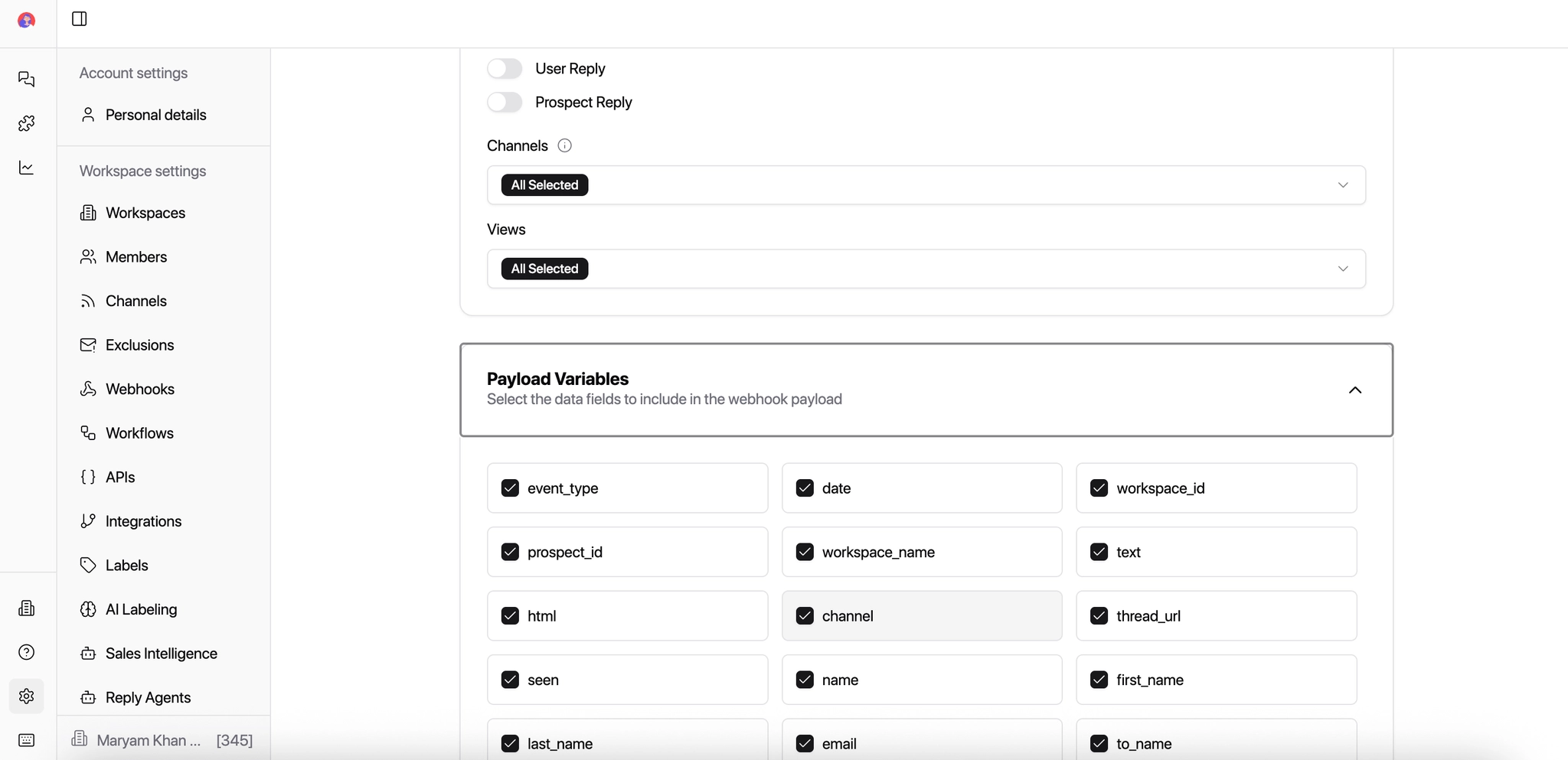
Configure the Payload Variables to decide what data Master Inbox sends to your app, such as:
Click Create Webhook to save.
Once active, the Webhook will automatically send real-time reply data to your connected app, no manual work needed.
Example Webhooks (Real Use Cases)
1. Slack Alert for Hot Replies
Trigger: Incoming Reply
Filter: Label = Interested
Action: Send message to #sales-hot-leads
Result:
Sales gets notified instantly when a prospect replies.
2. CRM Sync on Label Change
Trigger: Label Changed
Filter: Deal Status = Qualified
Action: Update lead stage in CRM
Result:
No manual CRM updates. Sales stages stay accurate.
3. Email Disconnection Alert
Trigger: Email Disconnected
Action: Notify ops team in Slack
Result:
Teams fix sender issues before replies are missed.
Webhook Payload Dictionary
This section explains what each payload field means and how it's commonly used.
These payload variables are sent whenever an event is triggered (reply received, label added, message seen, etc.).
Use this dictionary to:
Build automations
Sync data to CRMs
Trigger workflows
Power internal tools or dashboards
Payload Fields Explained
Event & Workspace Information
Field | Description |
|---|---|
event_type | The type of event that triggered the webhook (e.g. reply received, label added, message opened). |
date | Timestamp of when the event occurred. |
workspace_id | Unique ID of the workspace where the event happened. |
workspace_name | Name of the workspace (useful if you manage multiple workspaces). |
Prospect & Conversation Details
Field | Description |
|---|---|
prospect_id | Unique ID of the prospect inside MasterInbox. |
thread_url | Direct URL to open the conversation thread in MasterInbox. |
seen | Indicates whether the message has been seen (true / false). |
message_quantity | Number of messages exchanged in the thread. |
message_stage | Stage of the conversation (e.g. new reply, follow-up, ongoing). |
list_name | The list item the conversation belongs to (e.g. Lead, Deal, Client — customizable). |
label_names | Labels applied to the conversation (e.g. Interested, Follow-Up). |
Message Content
Field | Description |
|---|---|
text | Plain text version of the message. |
html | HTML version of the message (useful for formatting or rendering). |
subject | Subject line of the message (email only). |
channel | Channel where the message came from (Email or LinkedIn). |
channel_id | Internal ID of the channel/account used. |
Indicates if the message is from LinkedIn. |
Sender & Recipient Information
Field | Description |
|---|---|
name | Full name of the prospect. |
first_name | Prospect's first name. |
last_name | Prospect's last name. |
Prospect's email address (if available). | |
to_name | Name of the message recipient. |
to_address | Recipient email address. |
from_name | Sender's name. |
from_address | Sender's email address. |
reply_from | Indicates who replied (prospect or internal user). |
Company & Deal Data
Field | Description |
|---|---|
source_company_name | Company name associated with the prospect. |
job_title | Prospect's job title. |
deal_value | Deal value if associated with a deal. |
custom_fields | Any custom fields added by your team (industry, region, ICP tags, etc.). |
Why This Payload Is Useful (By Role)
For Agencies
Route replies to the right Slack channel or CRM
Trigger alerts when high-intent labels (Interested, Booked Call) are applied
Sync conversations into client CRMs automatically
Track performance across multiple workspaces and clients
Example:
If label_names contains Interested, notify the sales rep instantly.
For SDRs
Auto-create tasks when a reply comes in
Prioritize leads based on message_stage and seen
Push hot replies directly to CRM
Reduce manual copy-paste work
Example:
When event_type = reply_received, create a follow-up task.
For BDRs
Detect new inbound interest quickly
Segment replies by list and labels
Trigger follow-up sequences based on reply behavior
Keep LinkedIn and email conversations unified
Example:
If channel = LinkedIn and label = Interested, assign to senior rep.
Related Article: