
View Your Reply Agent Activity
In this guide, you'll learn why monitoring your Reply Agent matters, how to access the activity view, the difference between Drafts and Sent replies, and how to jump directly into any prospect conversation from here.
Why Monitoring Your Reply Agent Activity Matters
Once your Reply Agent is live, it doesn't just run in the background silently — it's actively drafting and sending replies on your behalf. Keeping an eye on its activity is just as important as setting it up correctly.
Monitoring your agent's activity lets you:
Stay on top of every conversation — see exactly what your agent has replied to so nothing slips through the cracks
Catch mistakes early — if your agent is replying in a way that doesn't match your intent, you'll spot it here before it becomes a bigger problem
Review drafts before they go out — if you're running in Human in the Loop mode, this is where you approve replies before they're sent
Jump directly into a prospect's conversation — no need to search through your inbox manually, you can go straight to the thread from here
Without checking activity regularly, you're essentially running blind — you won't know if your agent is performing well or missing the mark.
Prerequisites
Make sure you have already created and tested your Reply Agent before following this guide. If you haven't, refer to:
Steps
Go to Settings
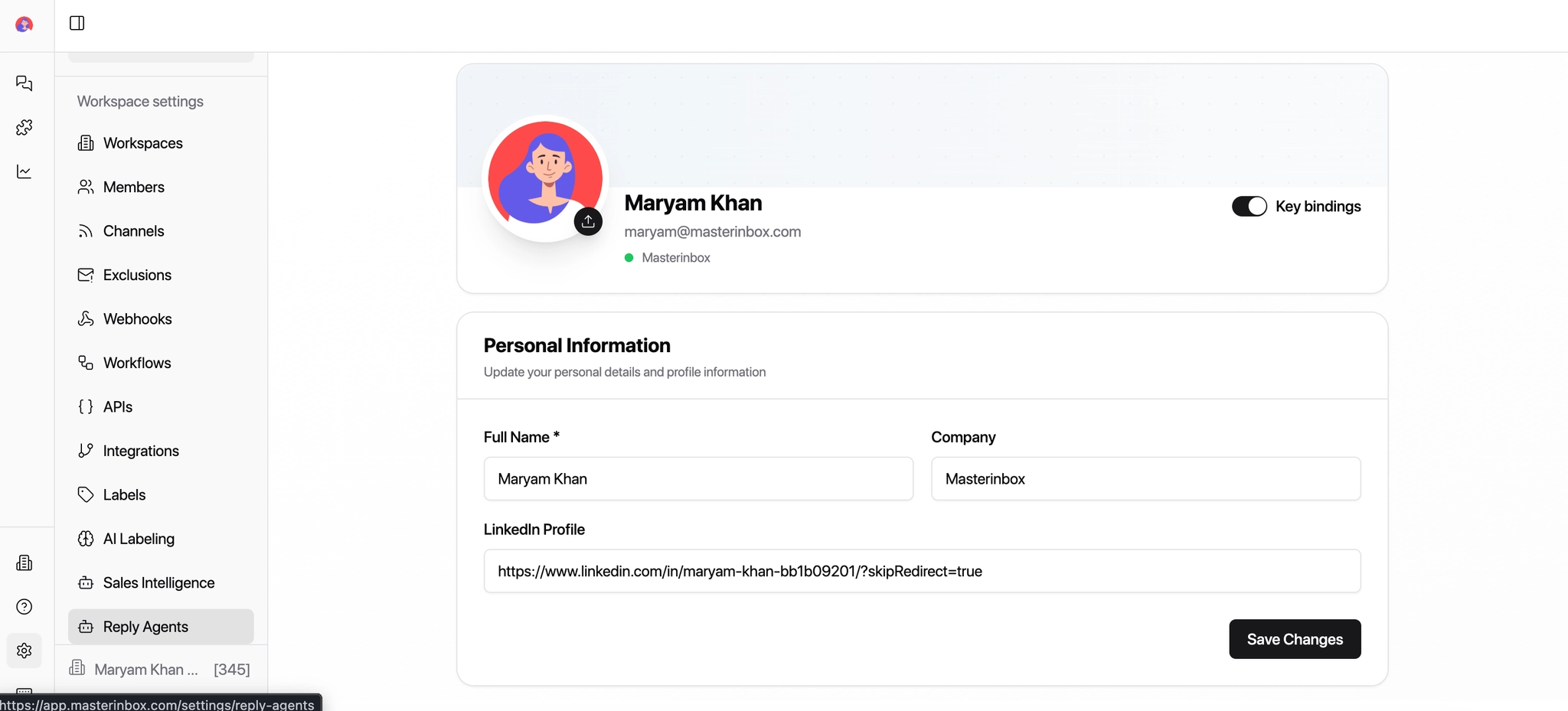
Click on the Reply Agent icon
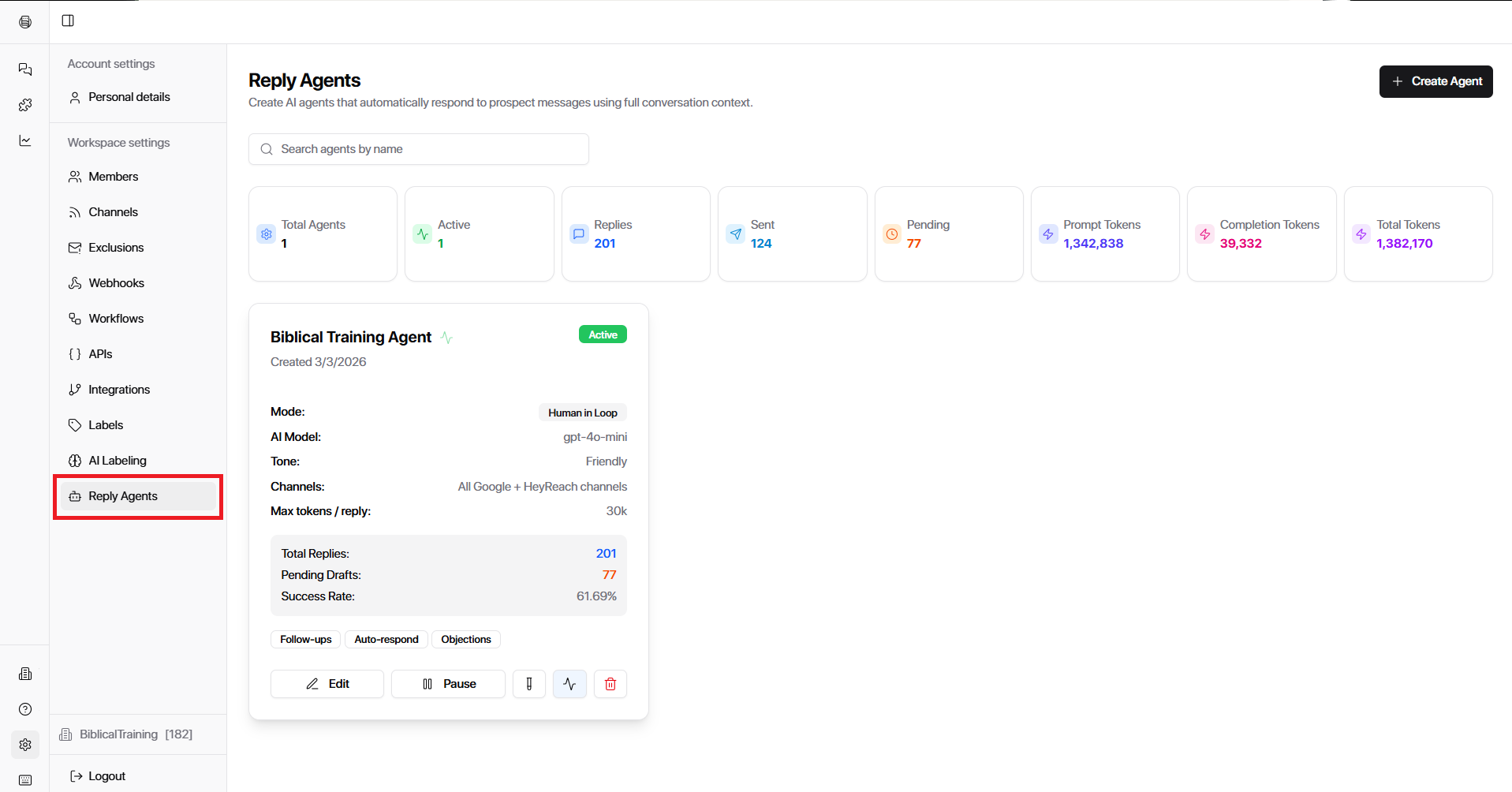
You will see a list of your current running agents
Click the View Activity icon next to the agent you want to review
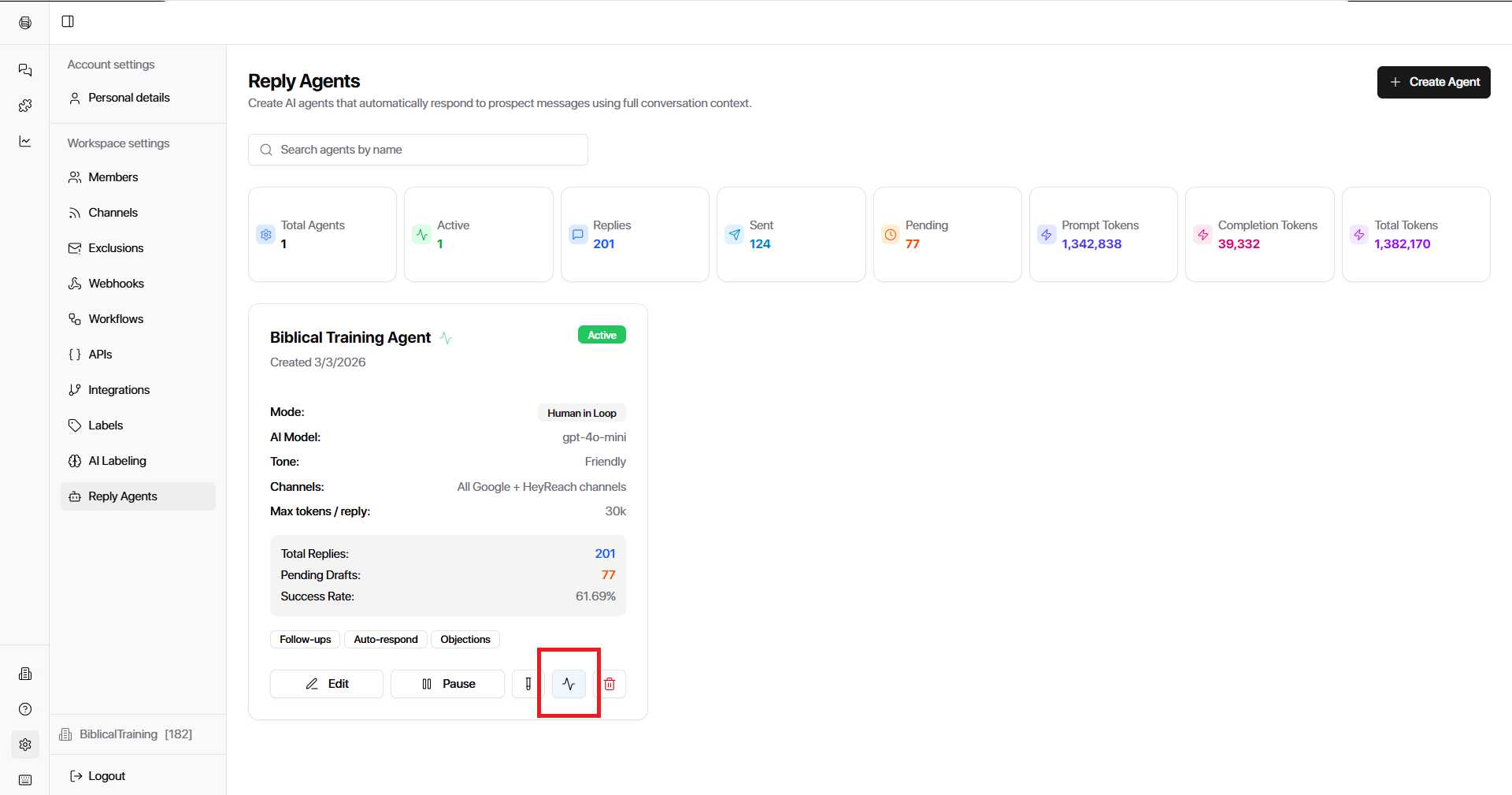
Inside the Activity View
You'll find all messages generated by your Reply Agent, organized into two categories:
Drafts Replies your agent has prepared but not yet sent. You'll see these when running in Human in the Loop mode — every reply waits here for your review and approval before going out. Read through each draft, make any edits needed, and send when you're happy with it.
Sent Replies your agent has already delivered to prospects. Review these regularly to make sure tone, messaging, and quality are consistently on point. If something looks off, it's a signal to revisit your prompt.
Viewing a Conversation in Your Inbox
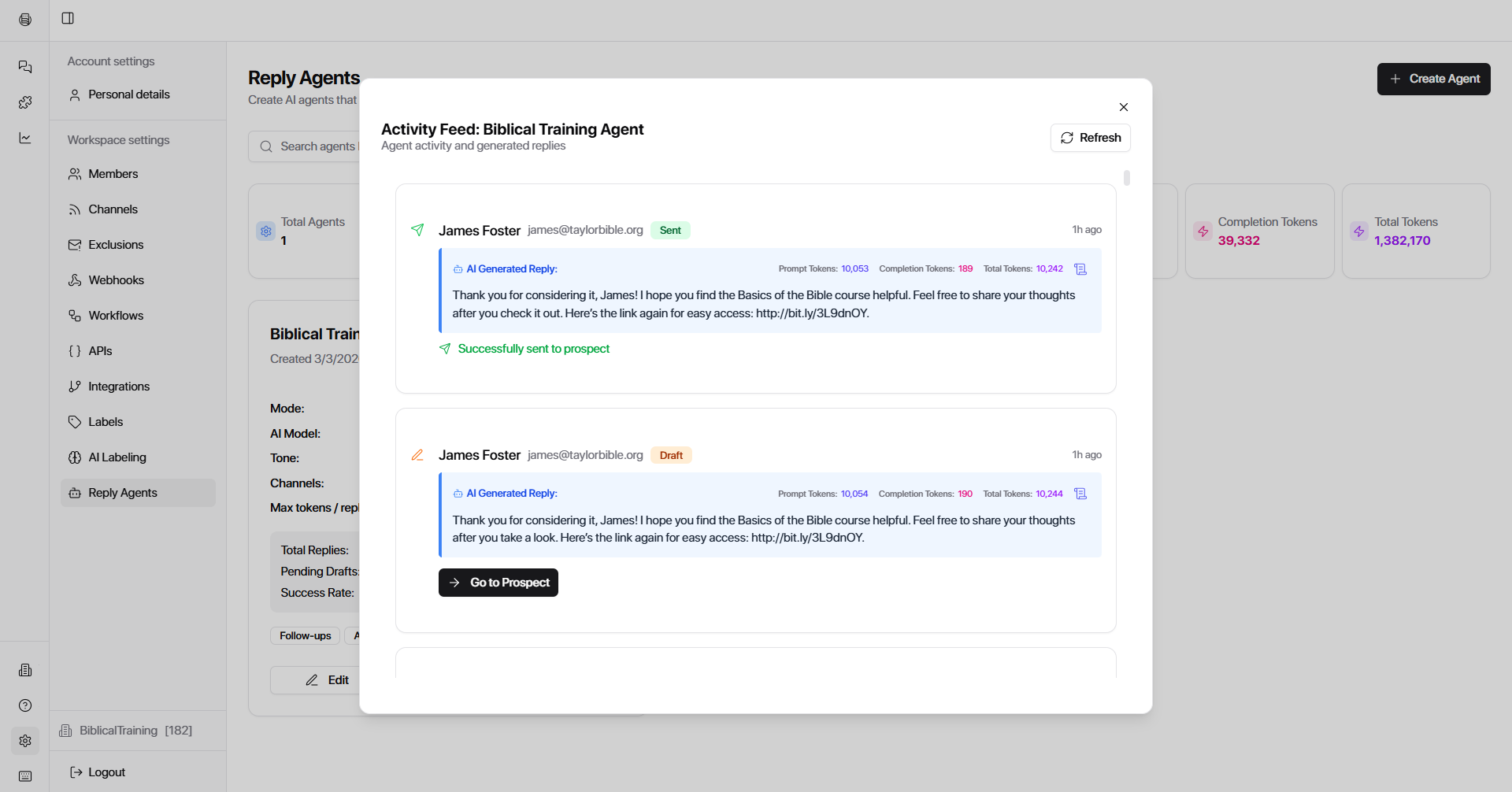
For any message marked as Sent, click "Go to Prospect" to open that conversation directly in your inbox or DM thread.
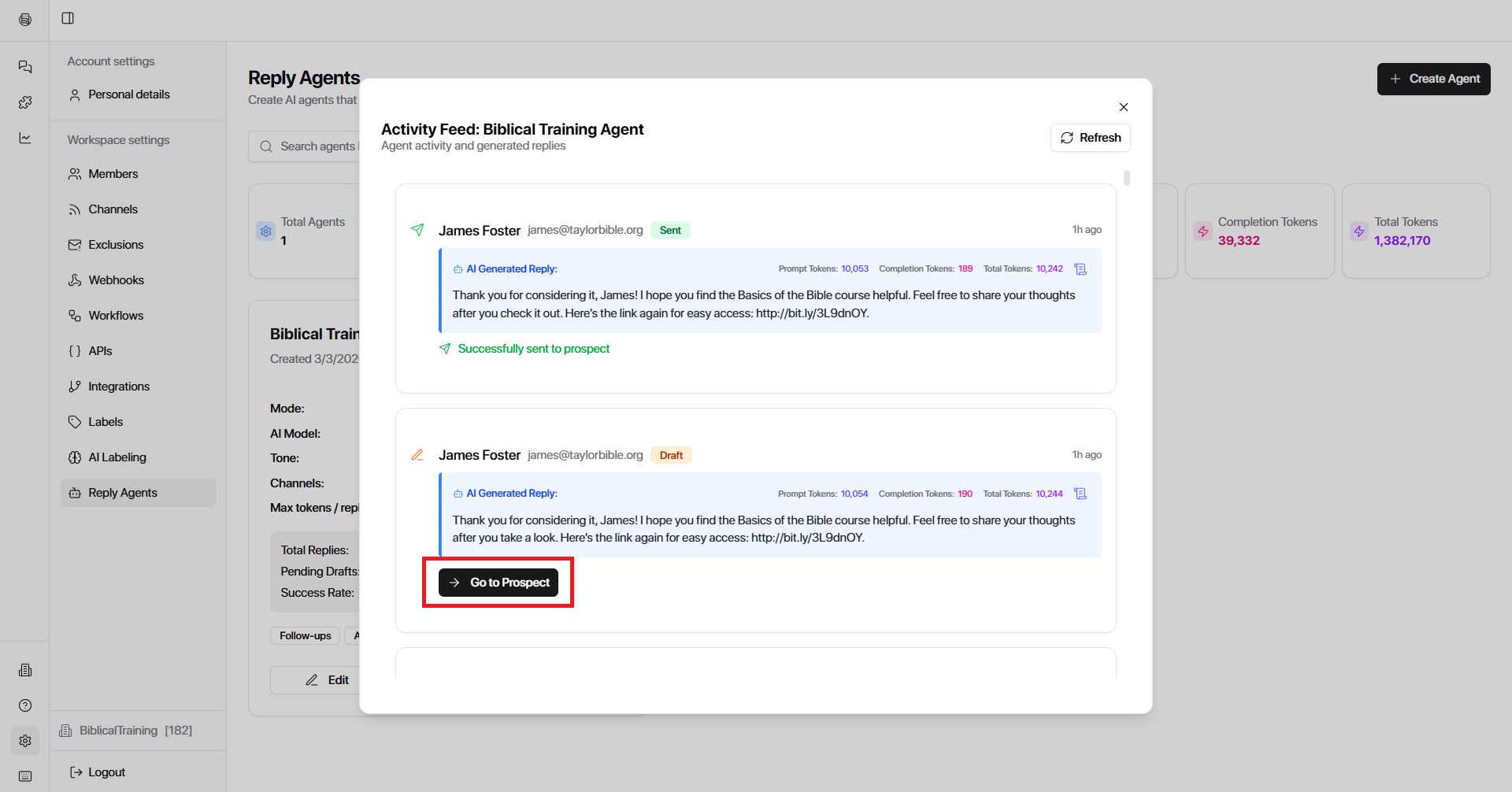
This lets you see the full context of the exchange — the original message, your agent's reply, and any follow-up — without having to search for it manually.