
Instantly.ai Integration
In this guide, you'll learn how to connect Instantly.ai to Master Inbox using API integration — including API key setup, DNC configuration, label syncing, and prospect sync options.
You can integrate Instantly.ai with MasterInbox using API or Webhook. Below are the steps for API integration.
1. Access API Settings
Log in to your Instantly.ai account.
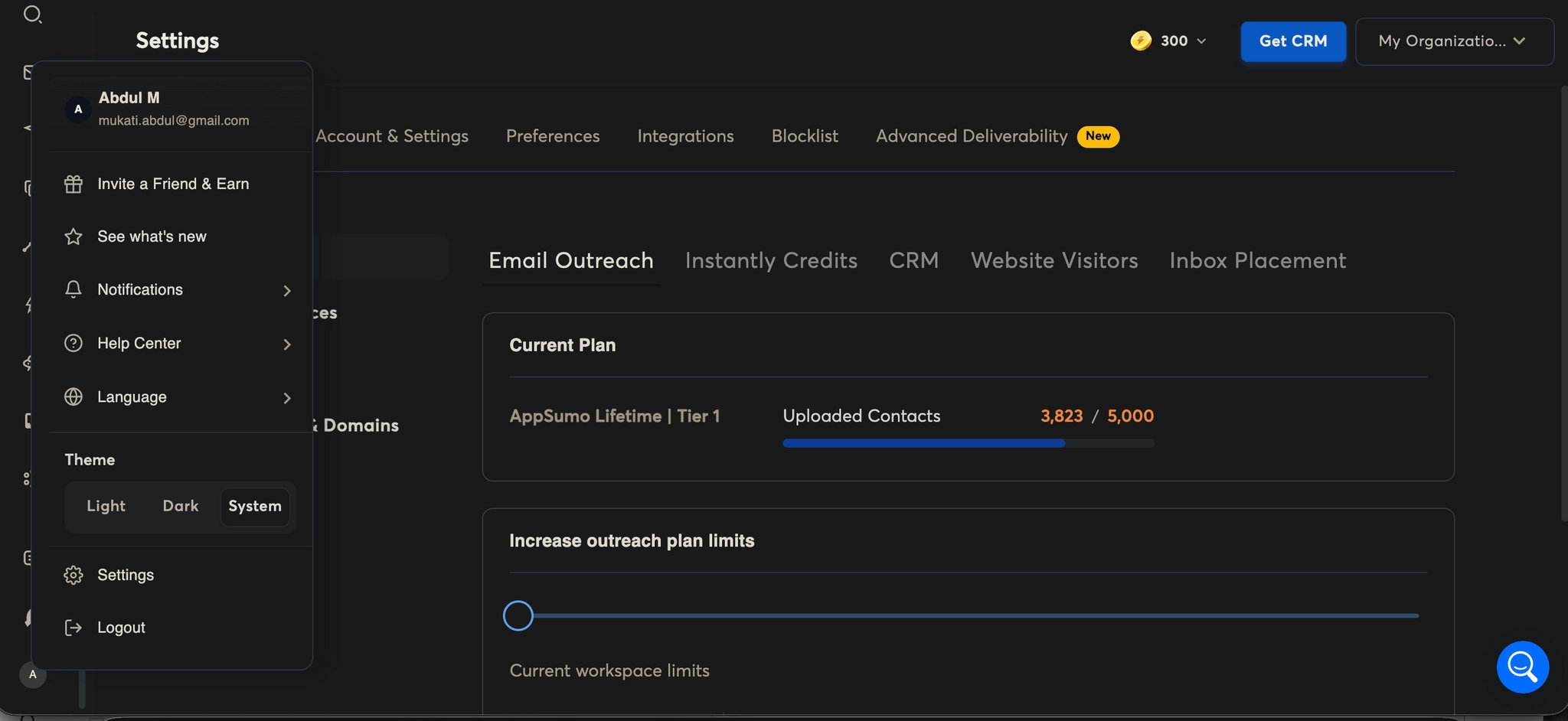
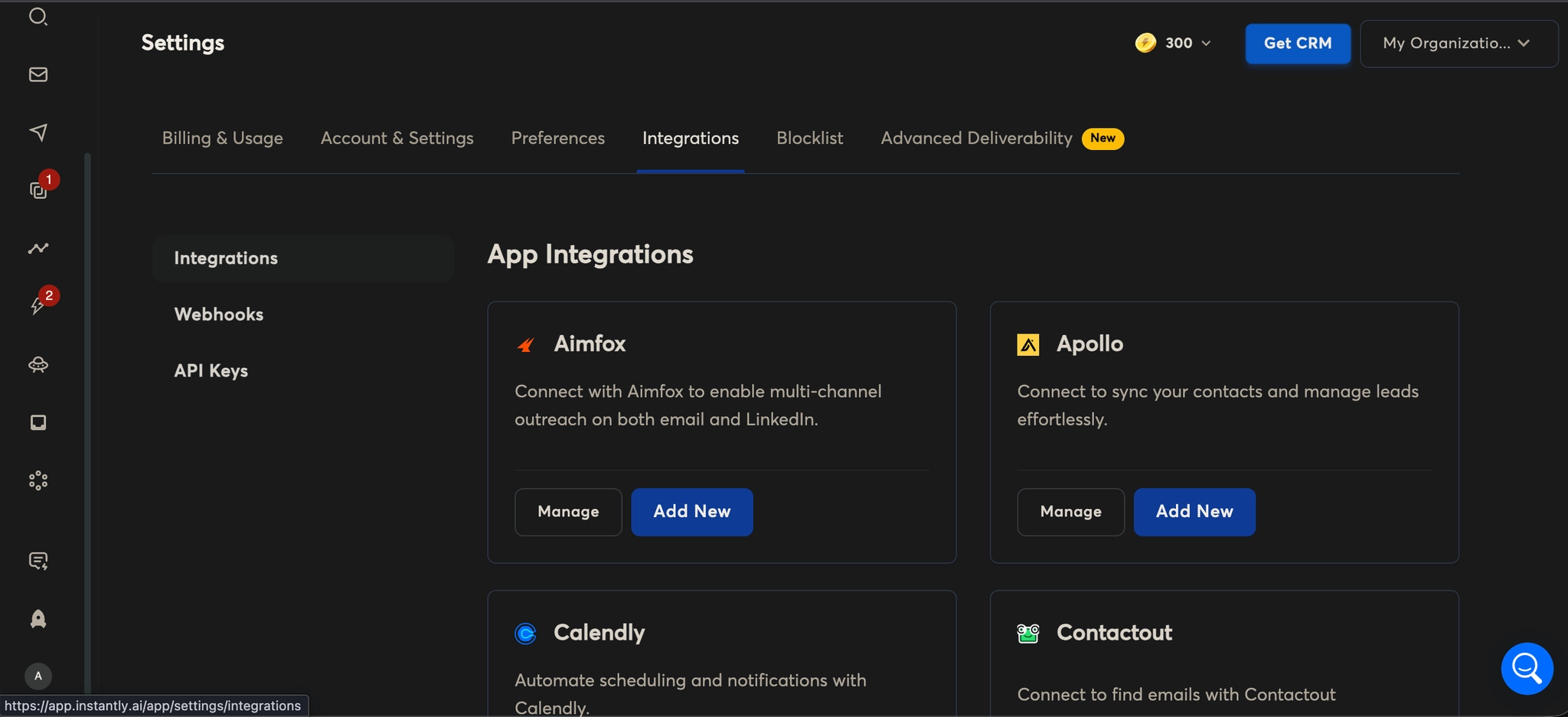
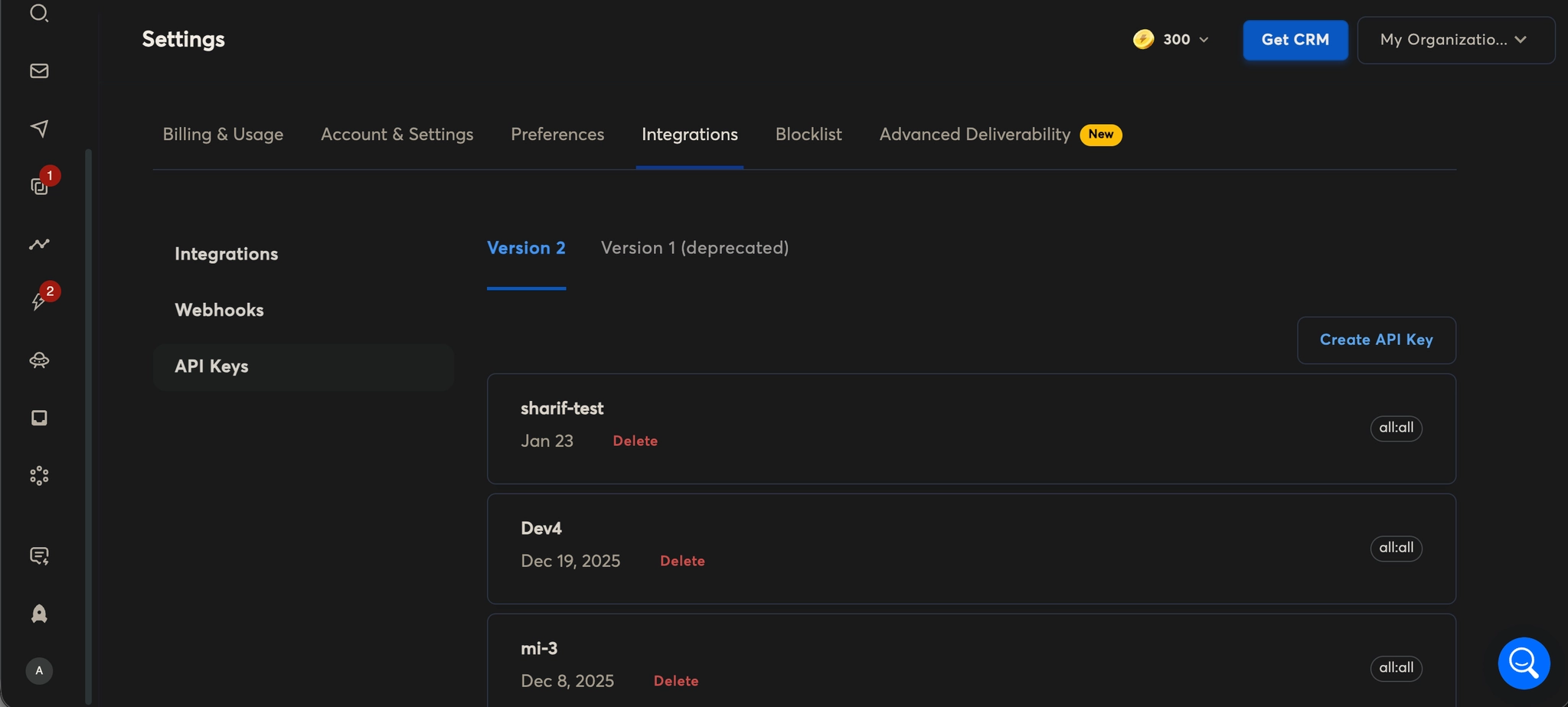
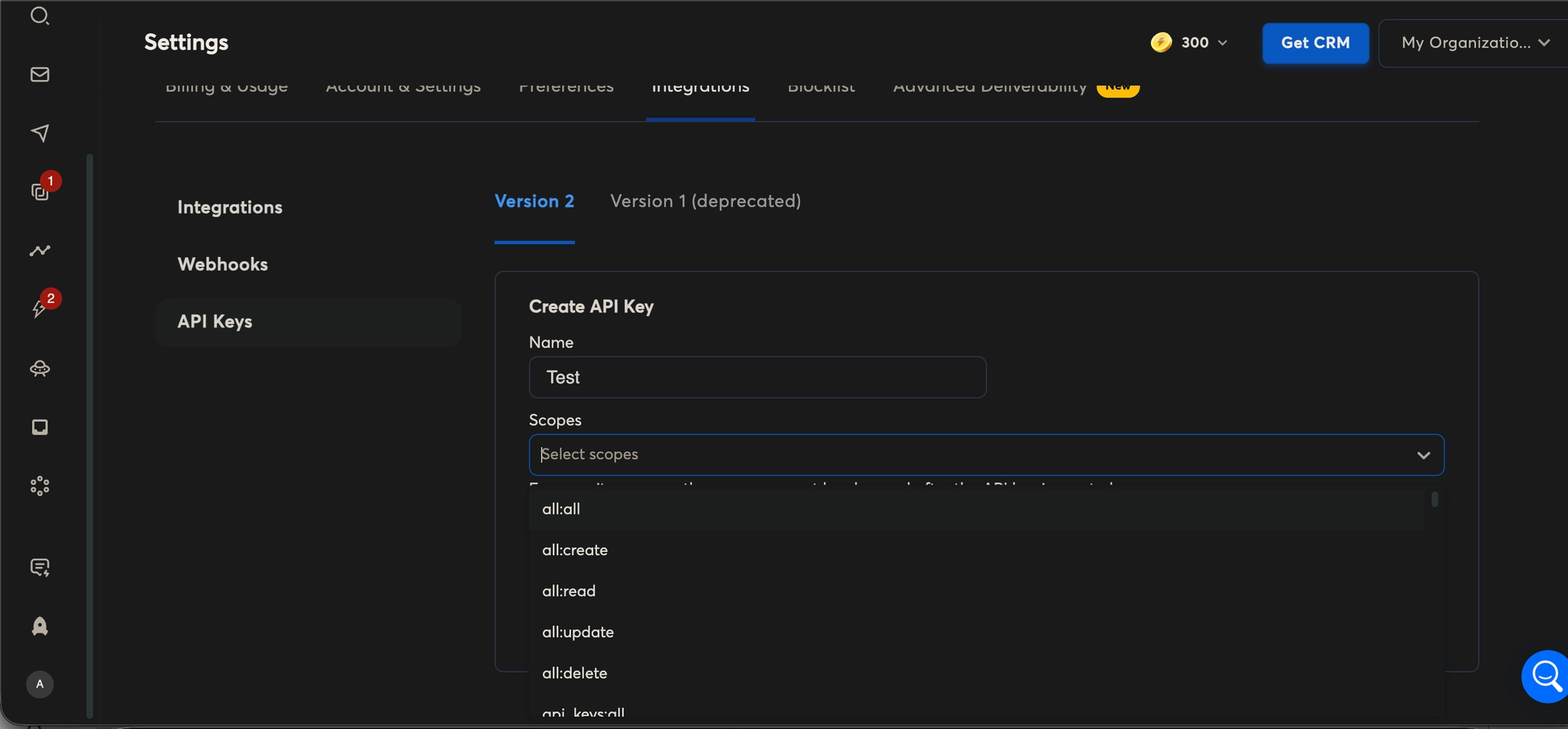
Go to Settings → Integrations → API Keys.
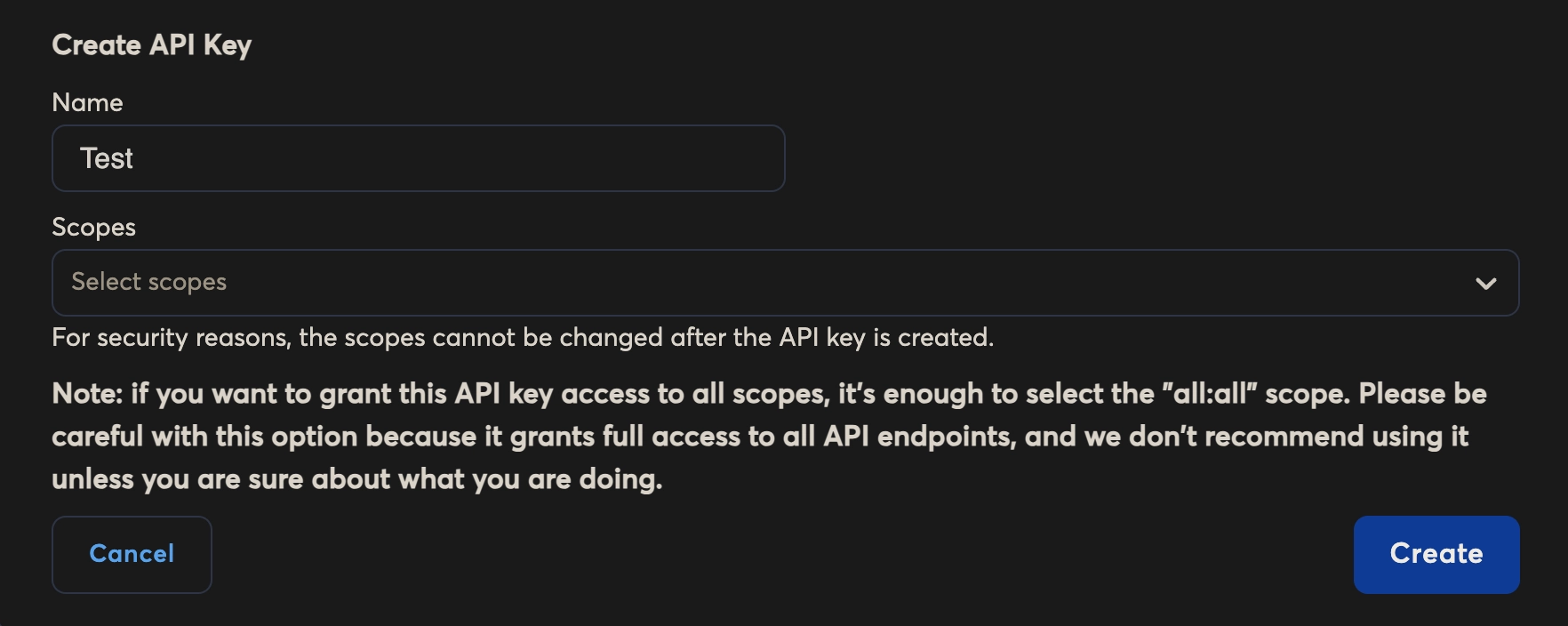
Click Create API Key.
Name: Enter a descriptive name for this API key (e.g., “MasterInbox Integration”).
Scope: Defines what this API key can access.
Scopes control permissions for the API key. For example, a key with limited scope can only read contacts or send messages, while
"all:all"grants full access to every API endpoint.Note: Only use
"all:all"if you fully trust the integration, as it gives complete control over your InstantAI.ai account.
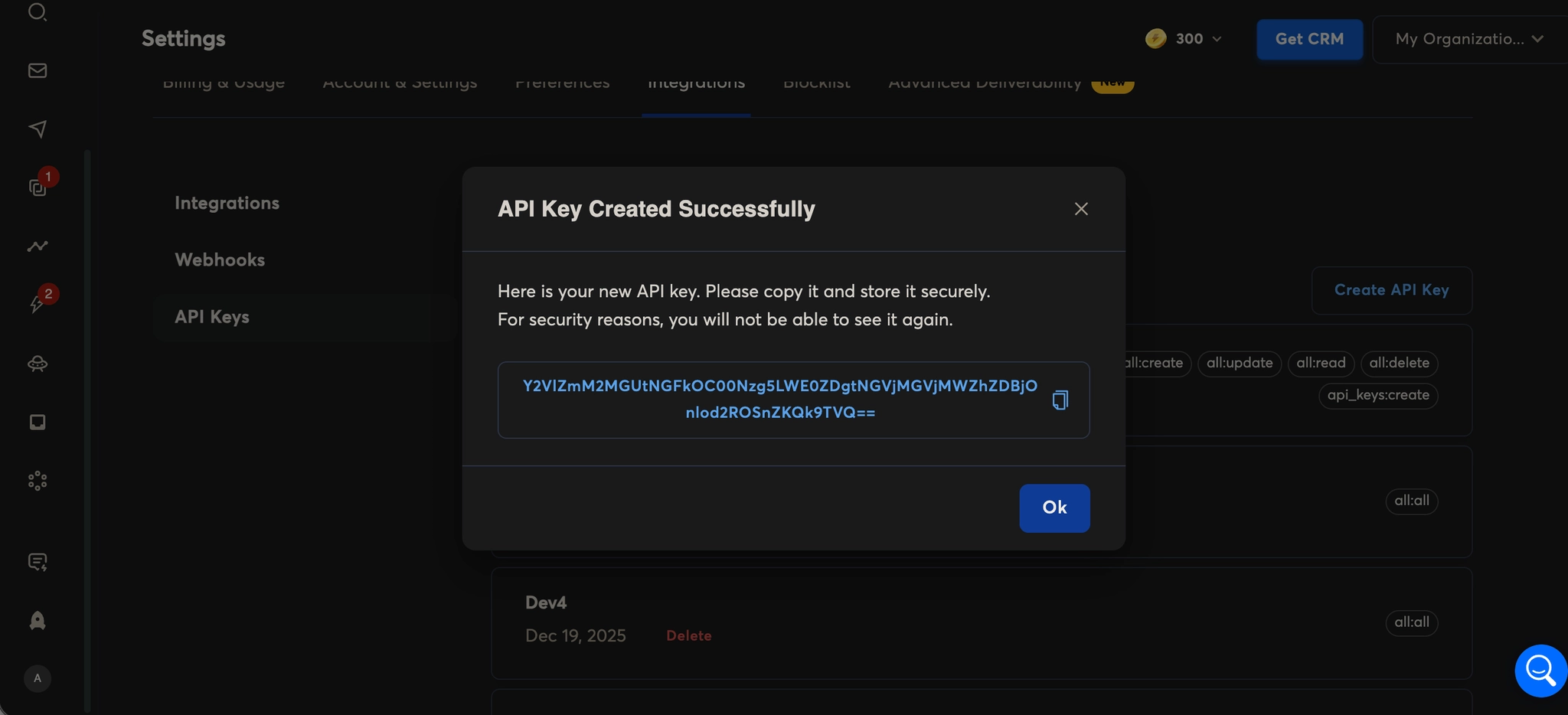
Click Save and copy the generated API Key.
2. Set Up Integration in MasterInbox
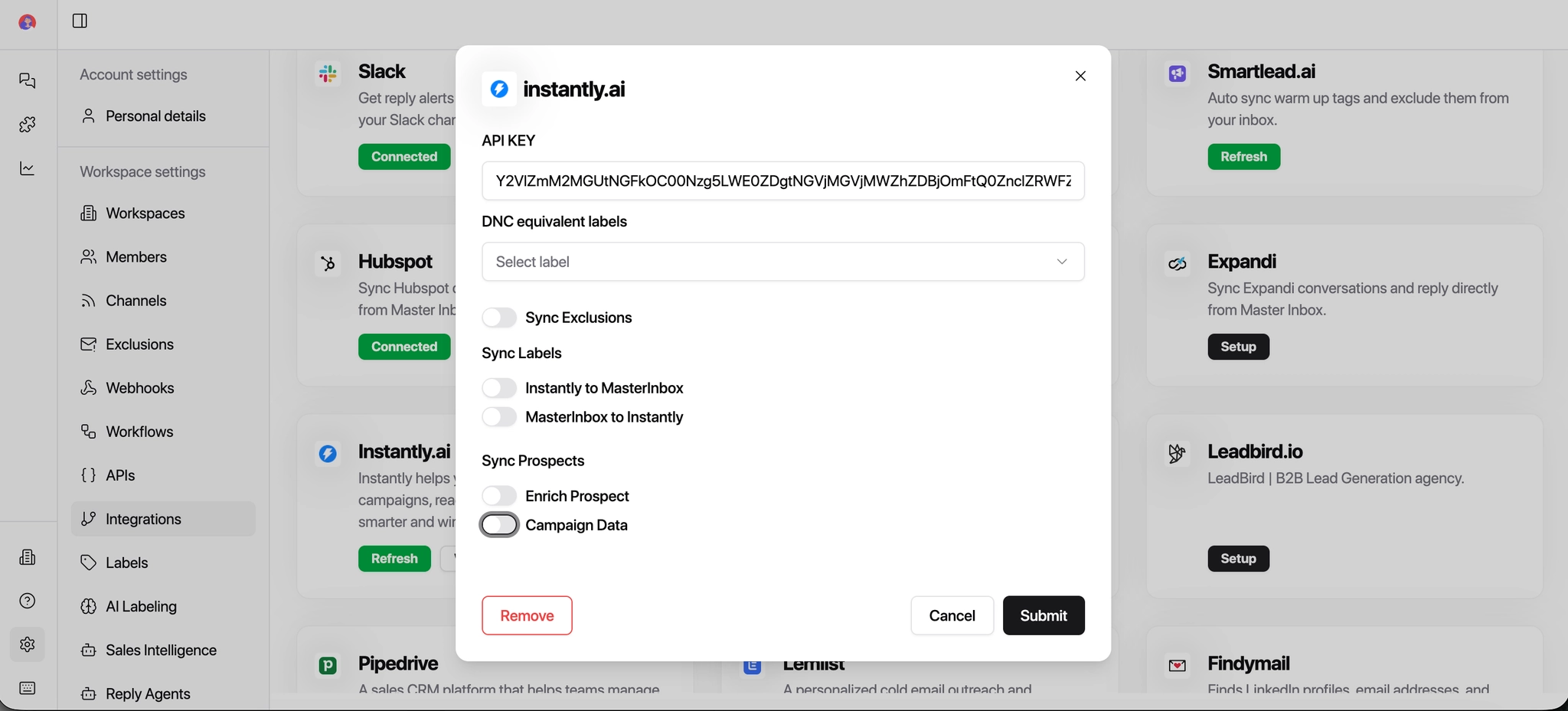
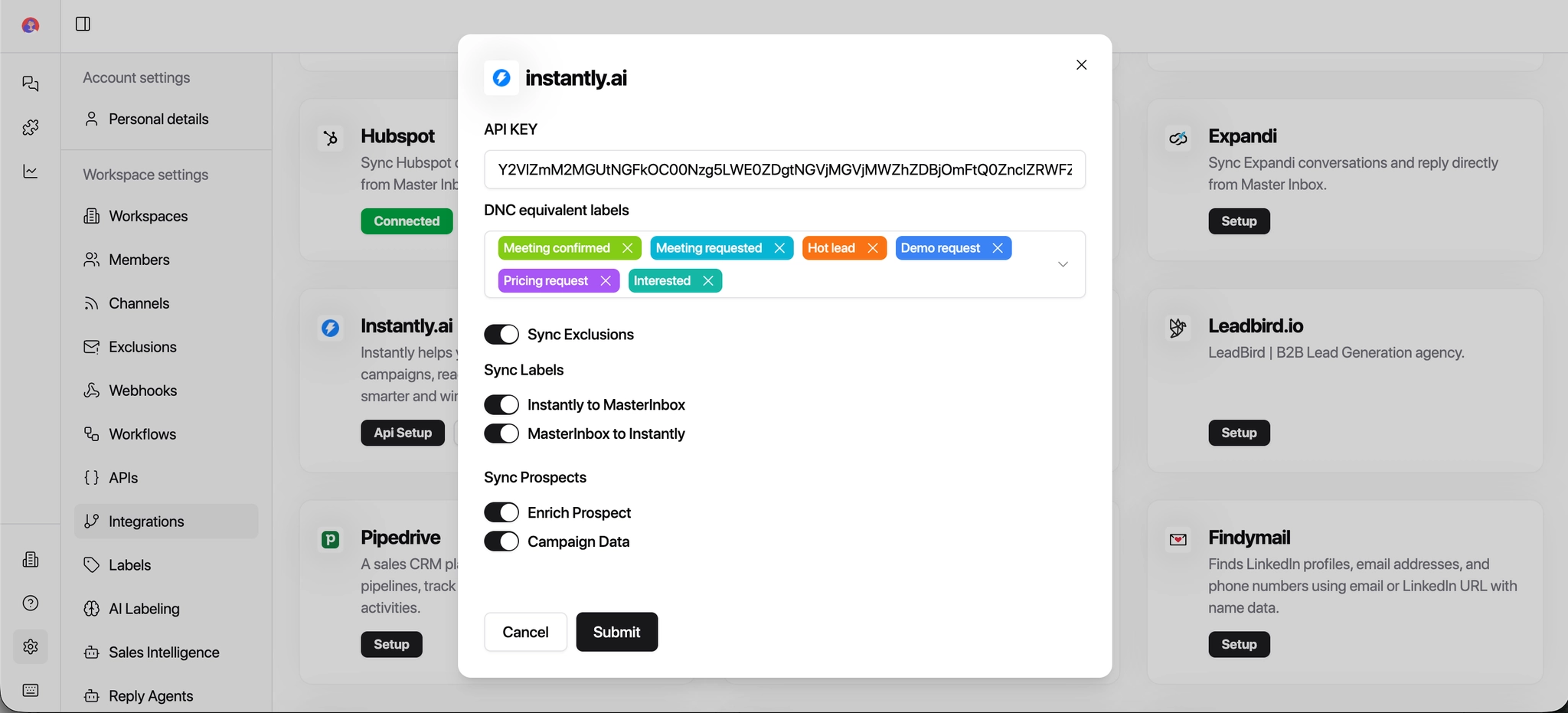
Paste the API key into MasterInbox's Integration Page.
Add the API URL (usually provided in Instantly.ai under API settings).
3. Configure DNC (Do Not Contact) Settings
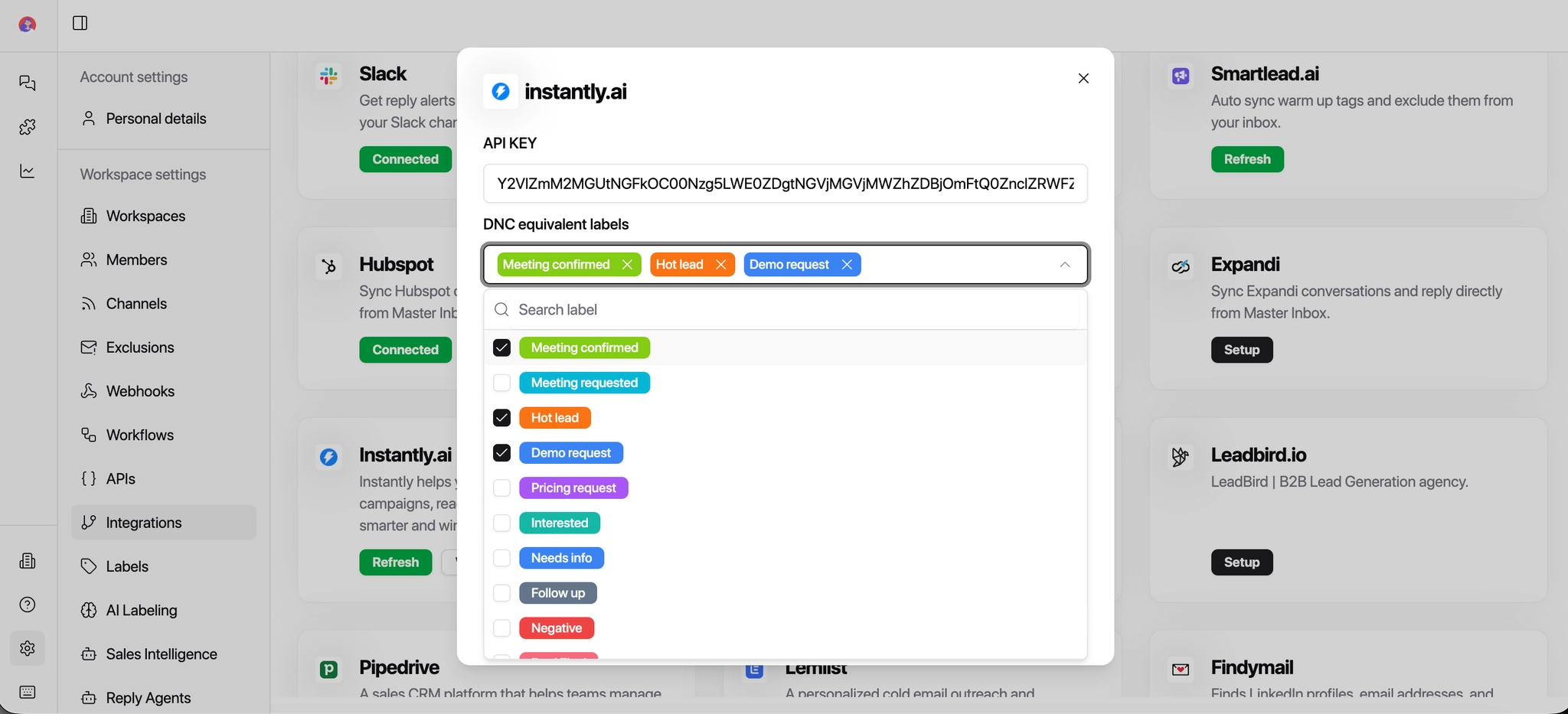
Select the equivalent DNC labels.
What is DNC and how it works:
This setting makes sure that anyone marked as Do Not Contact is never emailed again.
If a prospect is added to a DNC list in SmartLead or MasterInbox, MasterInbox will automatically stop messages from being sent to them.
Why this is important for agencies:
Prevents accidentally emailing opted-out prospects
Protects your sender reputation
Keeps you compliant with client rules and regulations
Avoids awkward or risky follow-ups
Example:
If a prospect replies "Please don't contact me again" and is added to a DNC list in SmartLead, MasterInbox will recognize this and make sure no future campaigns or replies reach them.
4. Sync Labels
Toggle the following options:
InstantAI.ai → MasterInbox: Labels from InstantAI.ai automatically sync into MasterInbox.
MasterInbox → InstantAI.ai: Labels created or updated in MasterInbox sync back to InstantAI.ai.
This keeps contact segmentation consistent across both platforms and helps in filtering, targeting, and campaign organization.
5. Sync Prospect Options
Enrich Prospect: When toggled ON, MasterInbox fetches additional information about your prospects from Instantly.ai.
Campaign Data: When toggled ON, campaign-related data (emails sent, opens, clicks, replies) will sync from Instantly.ai to MasterInbox.
If you work with overlapping leads across multiple clients, it's recommended to keep Campaign Data turned OFF. This helps avoid confusion when the same prospect appears in different client campaigns.
These options ensure your prospect profiles and campaign stats are always up-to-date, reducing manual tracking and improving outreach efficiency.
6. Save and Integrate
Once all settings and toggles are configured, click Save to complete the integration.
Your Instantly.ai account is now connected via API. Replies and prospect data will start syncing into Master Inbox automatically — with your DNC rules, label logic, and prospect settings all applied from the start.