
Create a Reply Agent
What you'll learn
In this guide, you'll learn what a Reply Agent is, how to configure it, how to write an effective prompt, and how to connect an AI provider to automate replies across email and LinkedIn.
What Is a Reply Agent (and What It's Not)
A Reply Agent is an AI-powered automation feature in Master Inbox that drafts or sends context-aware replies to prospect messages based on configurable tone, rules, AI models, and selected communication channels.
It can:
Auto-send replies (Fully Automated mode)
Draft replies for approval (Human-in-the-Loop mode)
Handle follow-ups
Respond to objections
Continue existing conversations
Operate across selected channels (Email, LinkedIn, etc.)
This is not creating a brand-new AI. You are connecting an existing AI model (like OpenAI) into your workspace. You control how it replies, when it replies, and where it replies.
Think of the Reply Agent as your AI teammate that follows your instructions exactly.
Why Use a Reply Agent?
Speed and Coverage
Respond faster to inbound replies and never miss a follow-up — even at high volume.
Consistency
Keep tone and messaging consistent across every reply, every channel, every team member.
Efficiency
Handle common objections and routine responses automatically. Save hours of manual replying.
Steps
Go to Settings
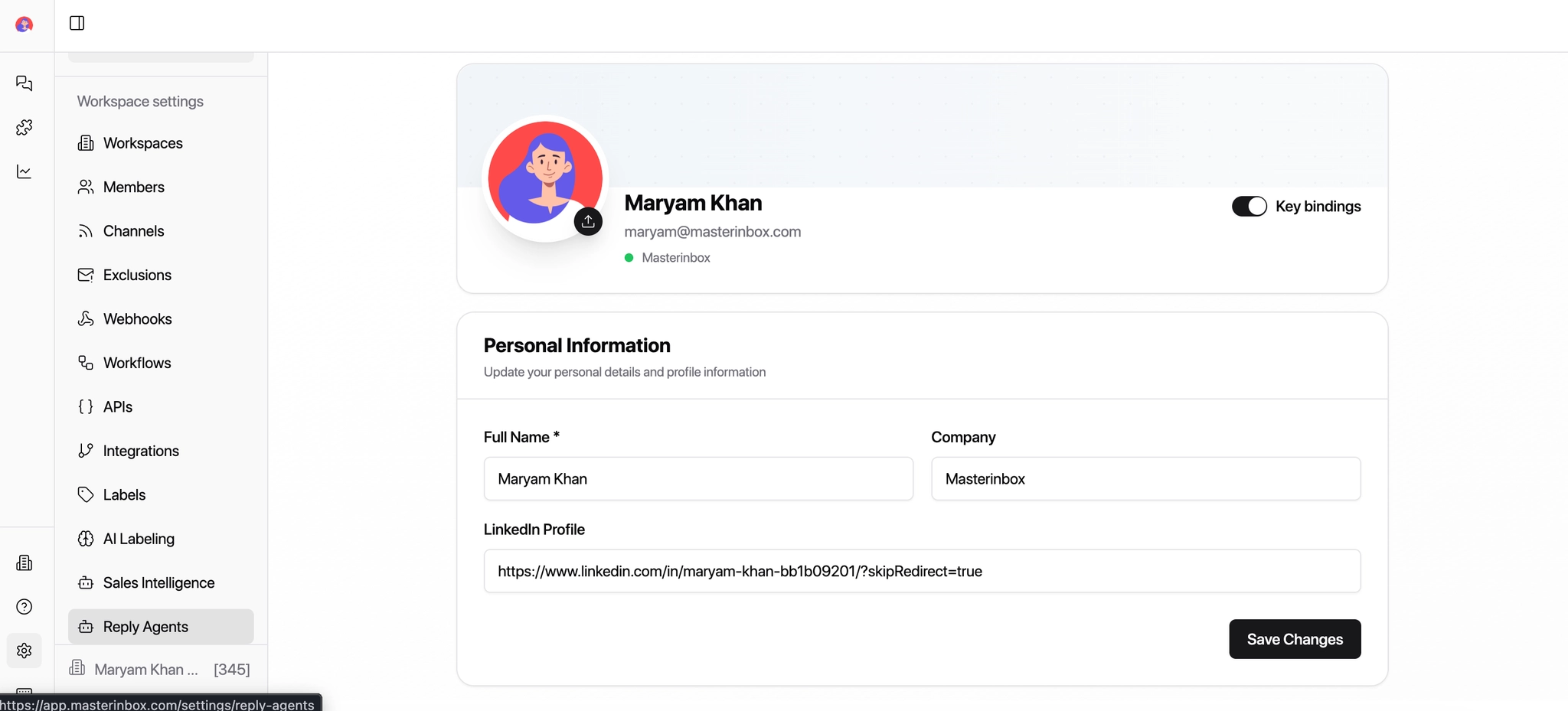
Click on the Reply Agent icon
Click Create Agent
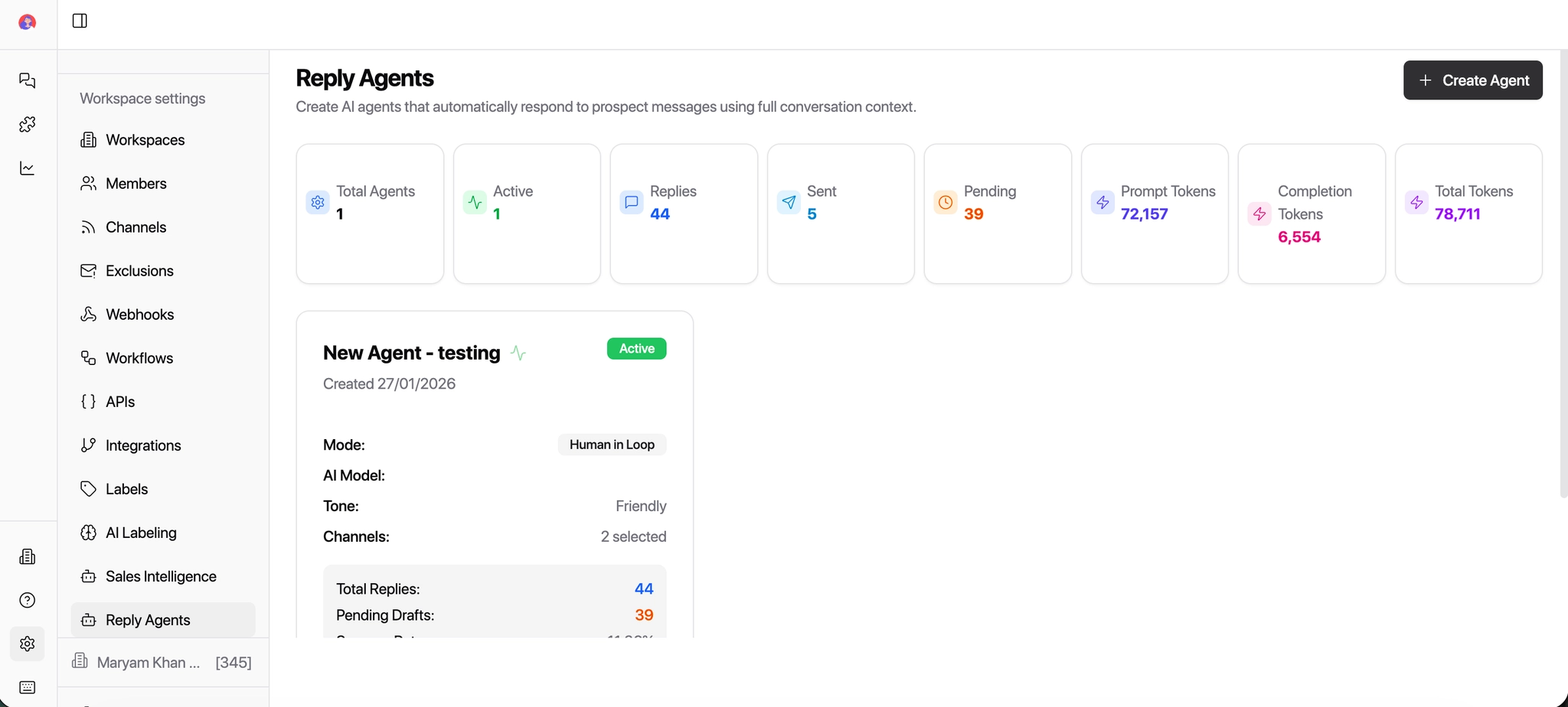
Start by filling in the general details.
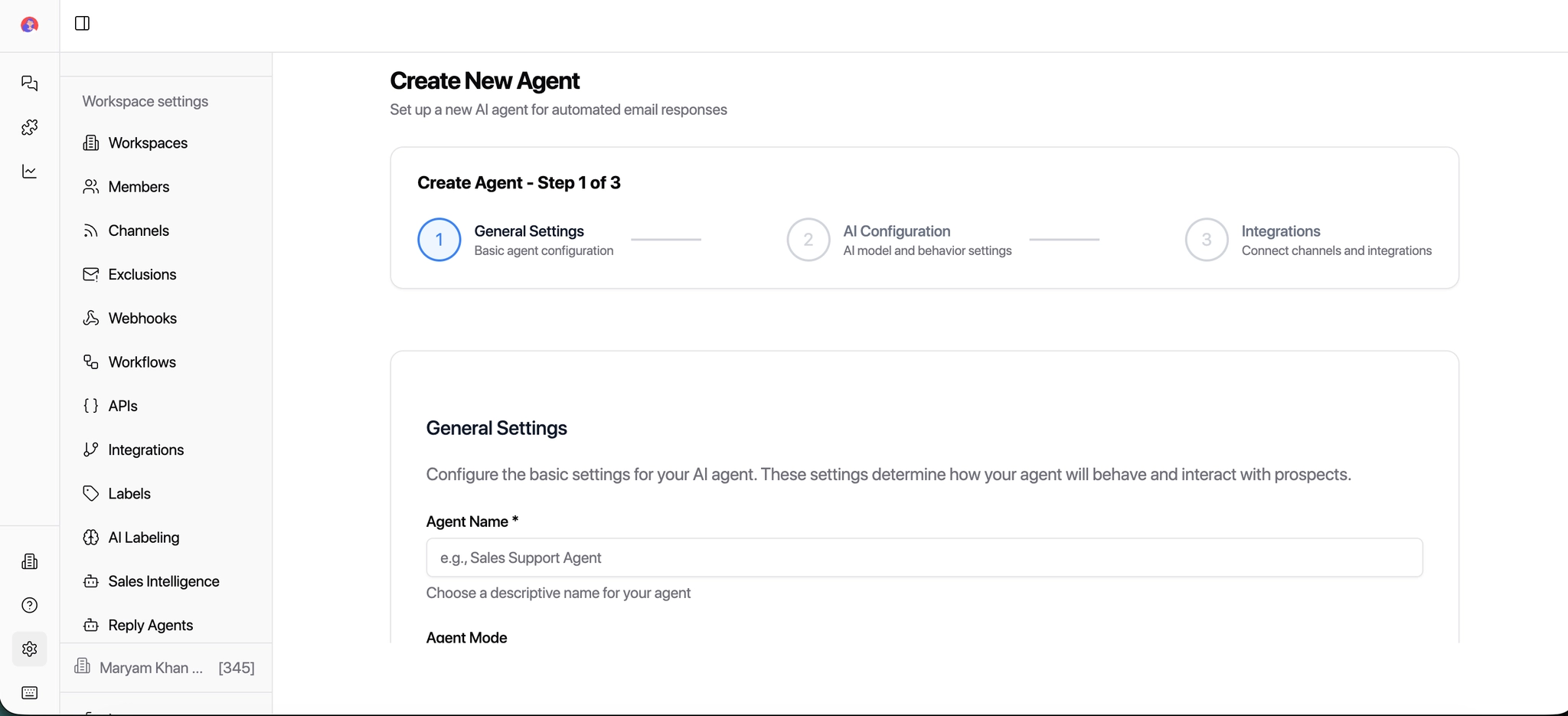
Give your agent a clear name
Example: Inbound Sales Reply Agent
Choose Agent Mode
Human in the Loop The agent drafts replies, but a human reviews and sends them. Best for teams that want control and approval before anything goes out.
Fully Automated The agent sends replies automatically without review. Best for high-volume inbound or handling common, predictable responses.
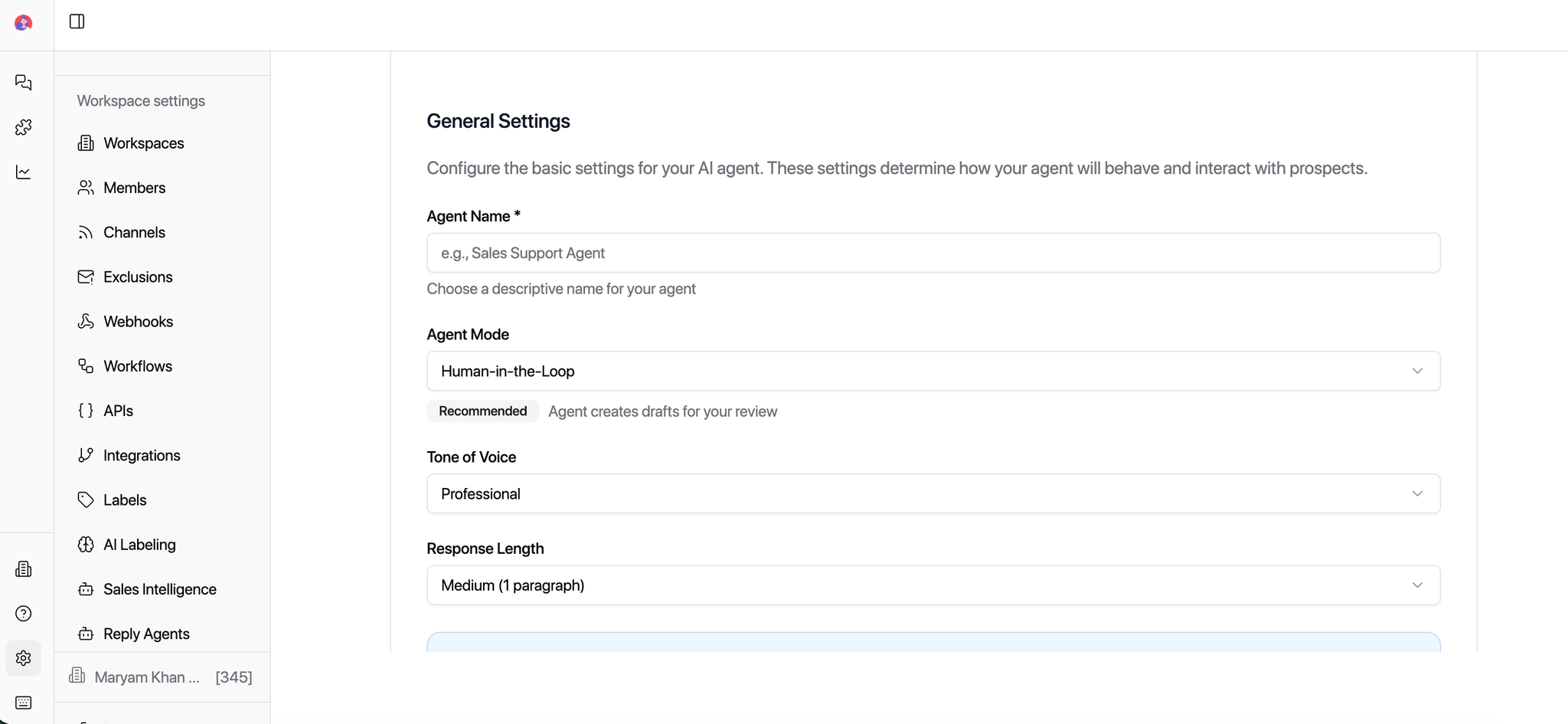
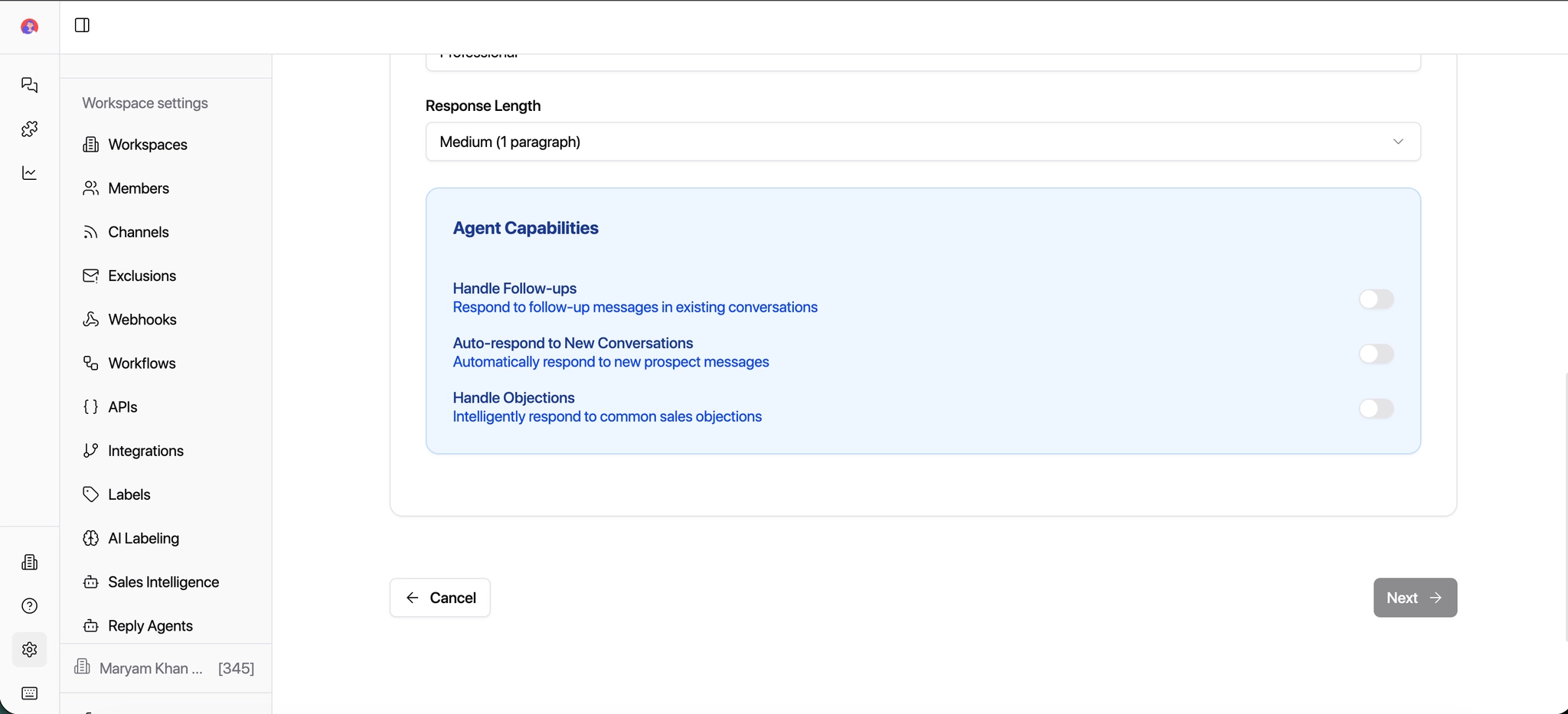
Choose how long replies should be:
Short
Medium
Long
This controls how detailed the agent's replies are.
Toggle what the agent is allowed to do; enable only what you are comfortable automating.
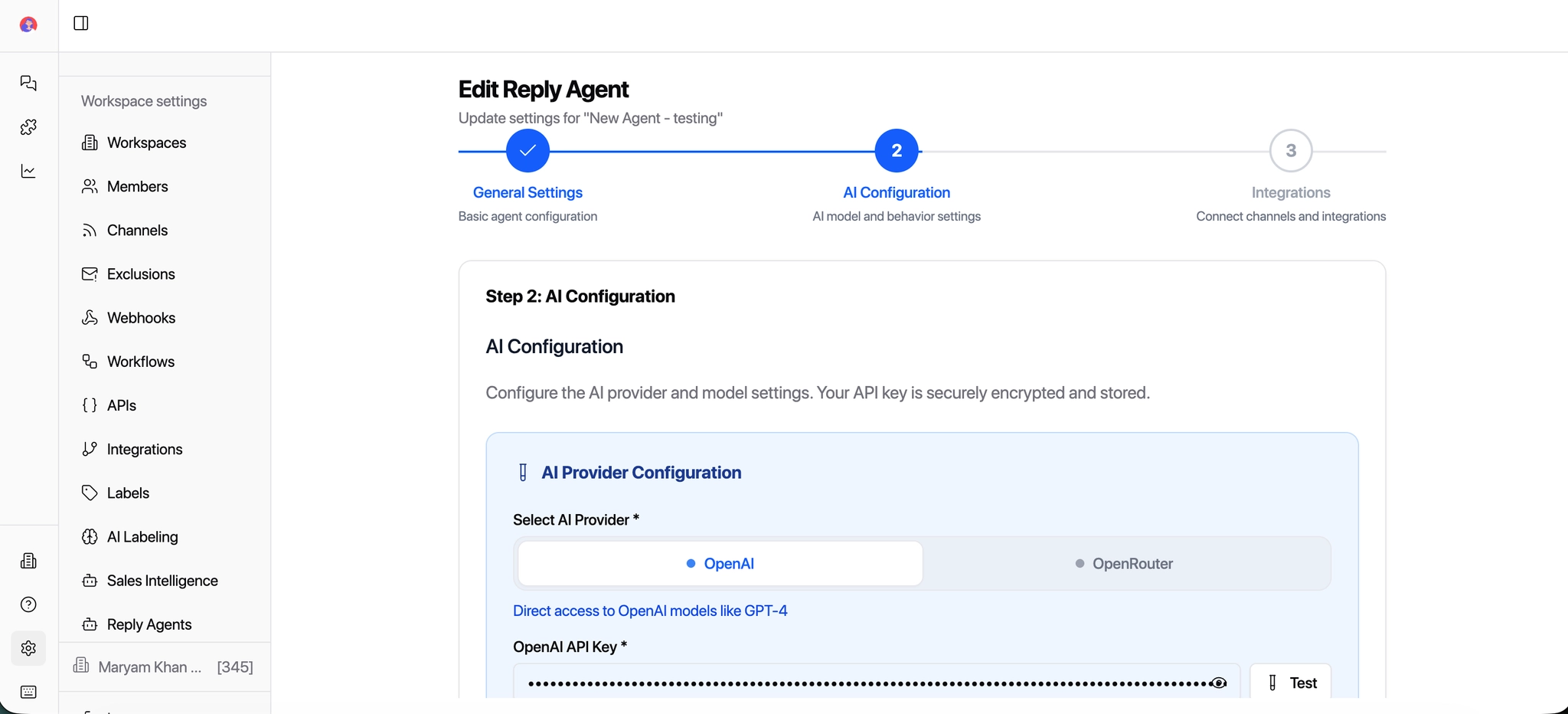
Now connect the AI model that powers your agent and Select AI Provider
You can choose:
Connect An API Provider
The AI Provider is the brain behind your Reply Agent — the service that generates the actual replies.
OpenAI Requires an OpenAI API key. Connect directly to GPT models.
OpenRouter
Requires an OpenRouter API key. Supports multiple model options through one connection.
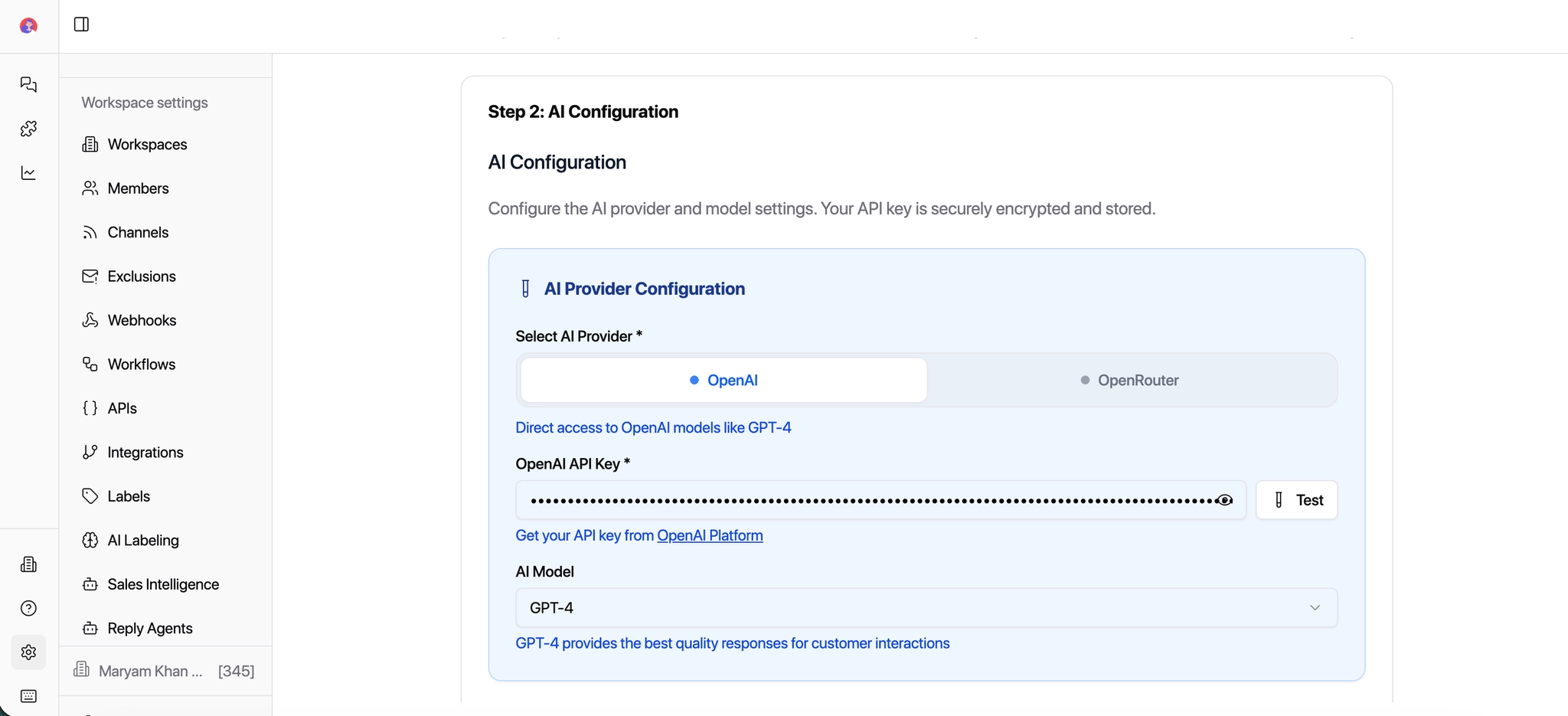
Select the AI Mode
We recommend:
GPT-4o Mini
It offers the best balance of speed, cost, and quality for replies.
Adjust how creative the replies should be:
Low → More direct, factual replies
High → More conversational and flexible replies
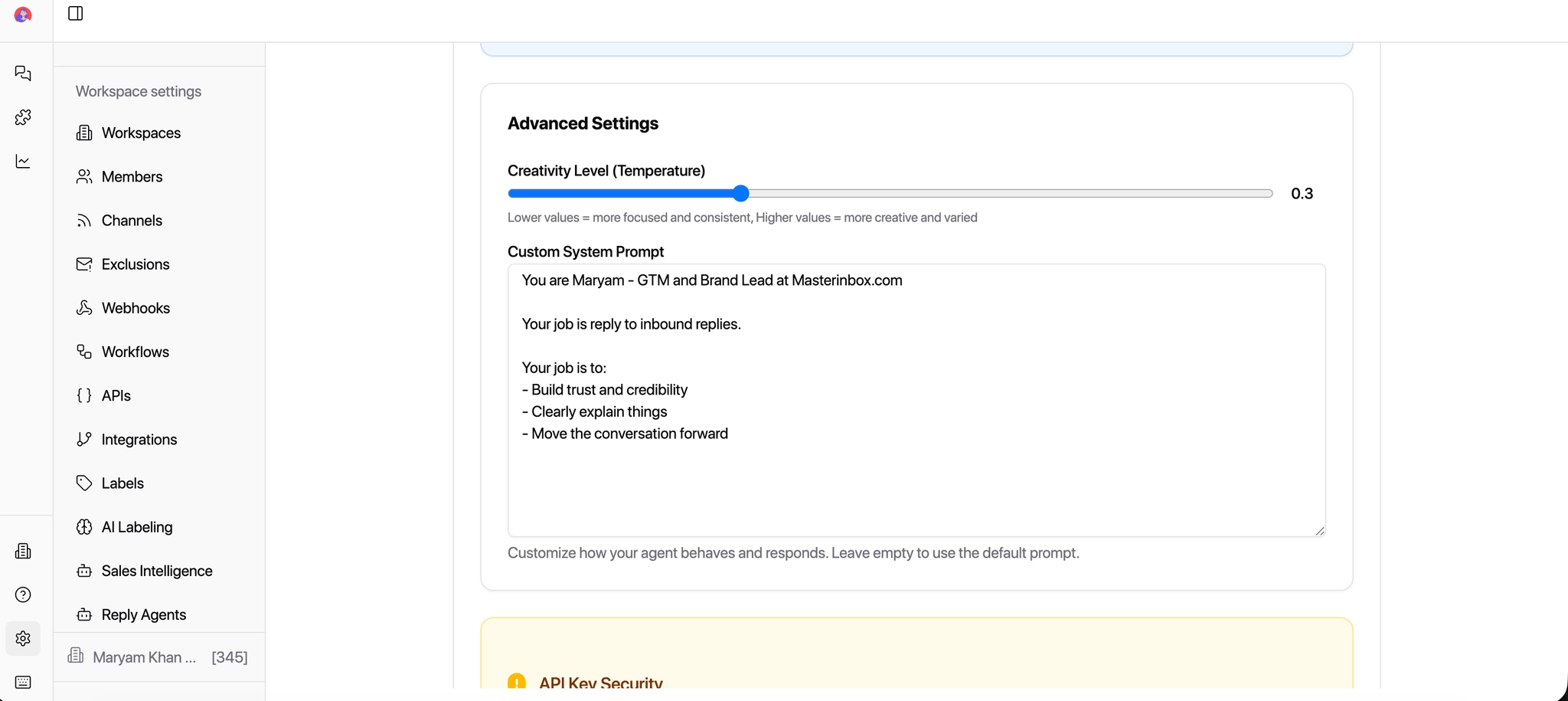
Write Your Prompt
This is the most important part of your setup. Your prompt defines who the agent is, what it does, and how it sounds. A good prompt covers three things: Role, Responsibilities, and Tone.
This is where you define:
1️⃣ Brand Identity
Who you are
What your company does
Your positioning
2️⃣ Voice & Tone Rules
Writing style
Energy level
Formality
Personality
3️⃣ Messaging Guidelines
How to respond to interest
How to respond to objections
How to respond to pricing questions
How to respond to “not now”
How to respond to negative replies
4️⃣ Rules & Responsibilities
Examples:
Never overpromise
Never mention internal tools
Keep replies under 120 words
Always aim to book a call
5️⃣ Context Handling
You can instruct the agent to:
Consider full thread history
Prioritize the last message's intent.
Avoid repeating earlier messages
6️⃣ Edge Case Handling
You can define:
How to handle “Stop messaging me”
How to handle pricing objections
How to handle referrals
How to handle vague replies
You can define everything.
This is what turns a generic AI into your trained sales rep.
The more specific your prompt, the better your agent performs. Define the role, list the responsibilities, and be explicit about tone. Vague prompts produce vague replies.
BDR Reply Agent Role
Business Development Representative at MasterInbox. Objective: Reply to inbound messages and qualify leads. Responsibilities: Build trust, understand the prospect's use case, ask 1–2 qualifying questions, move qualified conversations forward. Tone: Professional and friendly. Clear and concise. Not pushy. Guidelines: Keep replies short. Focus on discovery, not pitching. Understand intent before booking a call.
SDR Reply Agent Role
Sales Development Representative at MasterInbox. Objective: Convert inbound interest into booked meetings. Responsibilities: Respond quickly, address basic objections, guide conversations toward a call. Tone: Conversational and confident. Direct but polite. Action-oriented. Guidelines: Keep replies brief. Use a clear next step when interest is shown. Do not over-explain.
Agency Owners Reply Agent Role
Agency Owner at MasterInbox. Objective: Reply to inbound leads and potential partners. Responsibilities: Build authority and trust, explain value at a high level, qualify serious opportunities, move toward a call or next step. Tone: Professional and confident. Clear and calm. Strategic, not salesy. Guidelines: Focus on outcomes, not features. Keep replies short and intentional. Avoid unnecessary detail.
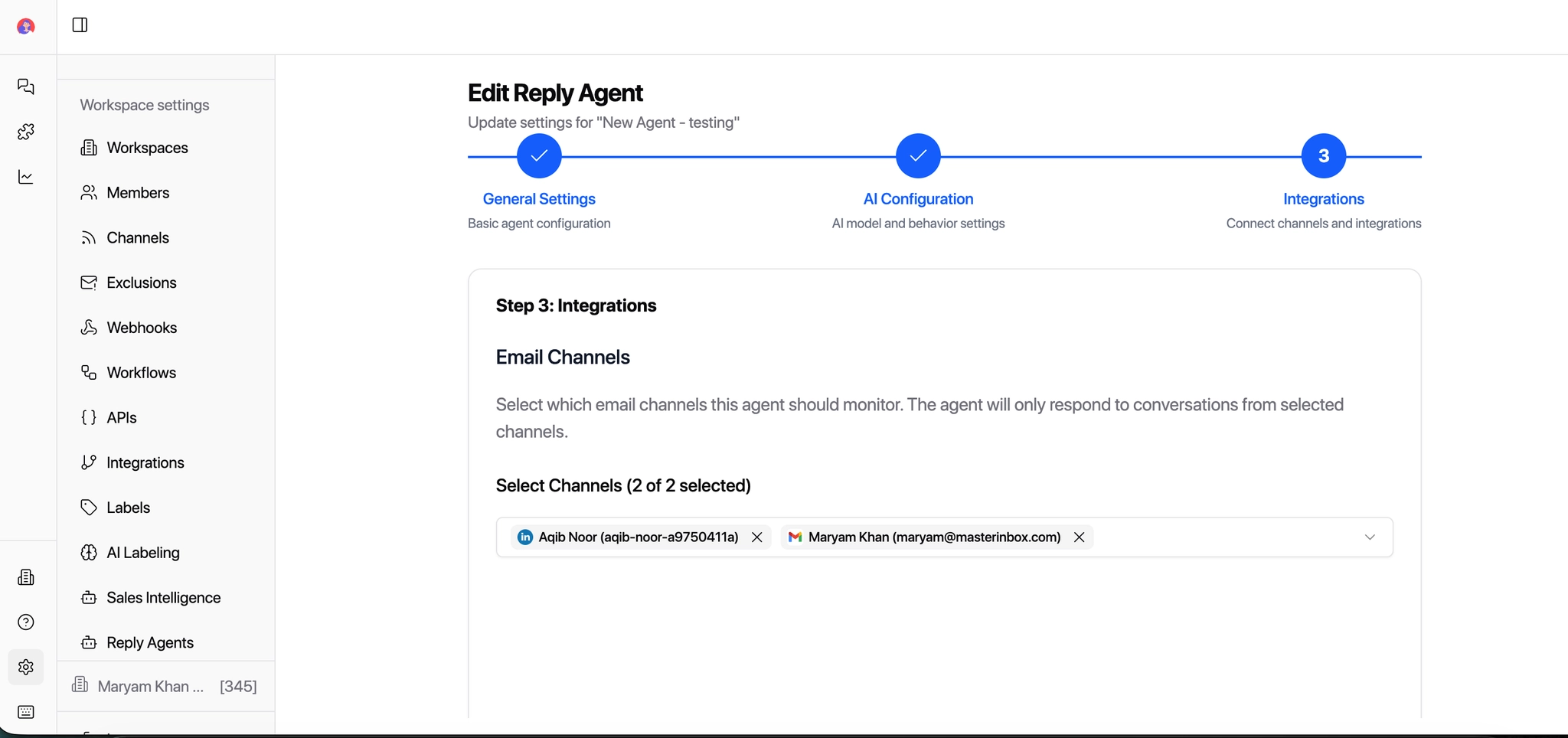
Choose where the agent can reply:
Email
LinkedIn
Once selected, the agent will only operate on those channels.
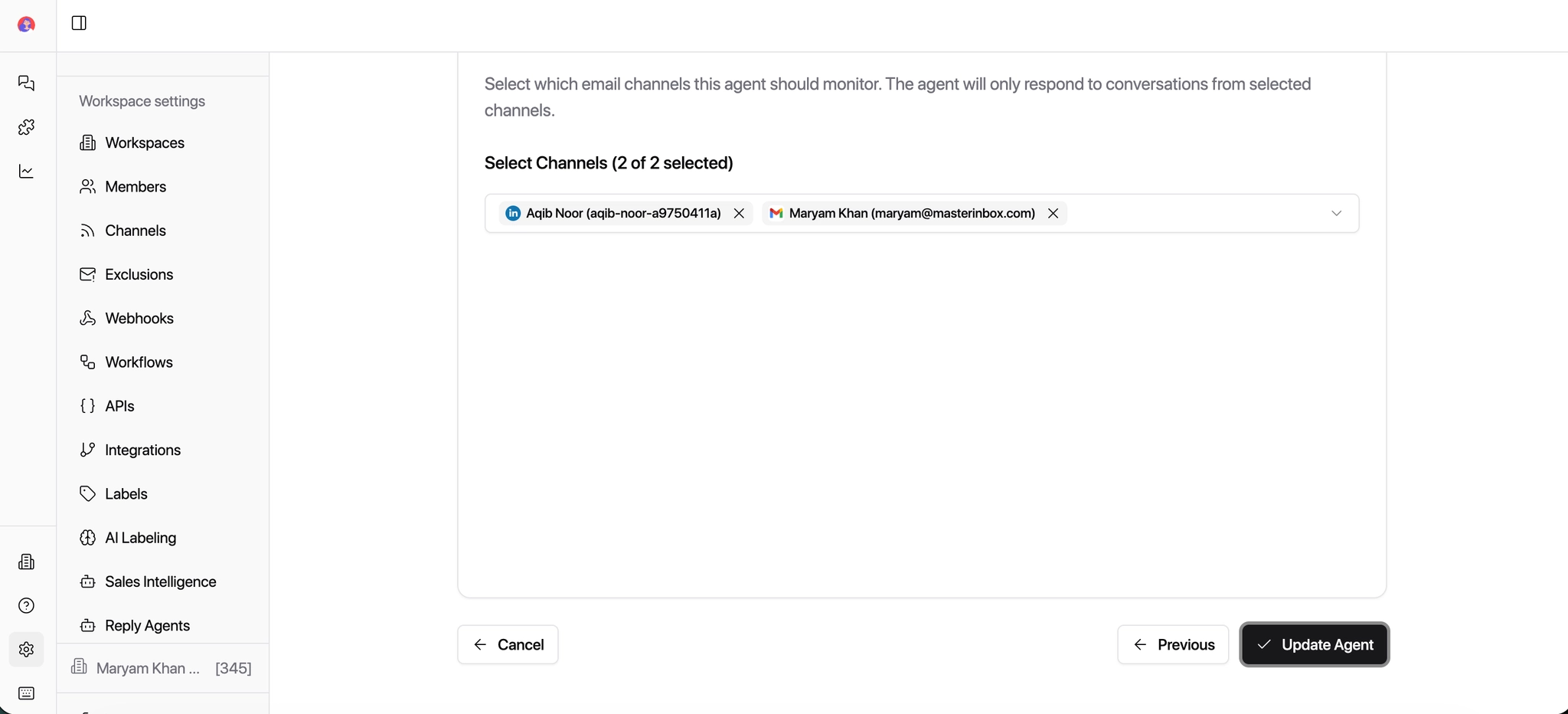
Click Save.
Your Reply Agent is now created and ready. It will only operate on the channels you selected, following the prompt and settings you configured — nothing outside of what you defined.
What’s next?
You’ve created your reply agent—now it’s time to make sure everything works smoothly.