
SmartLead Integration
In this guide, you'll learn how to connect Smartlead to Master Inbox — including API setup, DNC configuration, Exclusive Tags, label syncing, and prospect options — so your campaigns and replies stay fully in sync.
Steps to Connect Smartlead
Step 1 — Open the Smartlead Integration
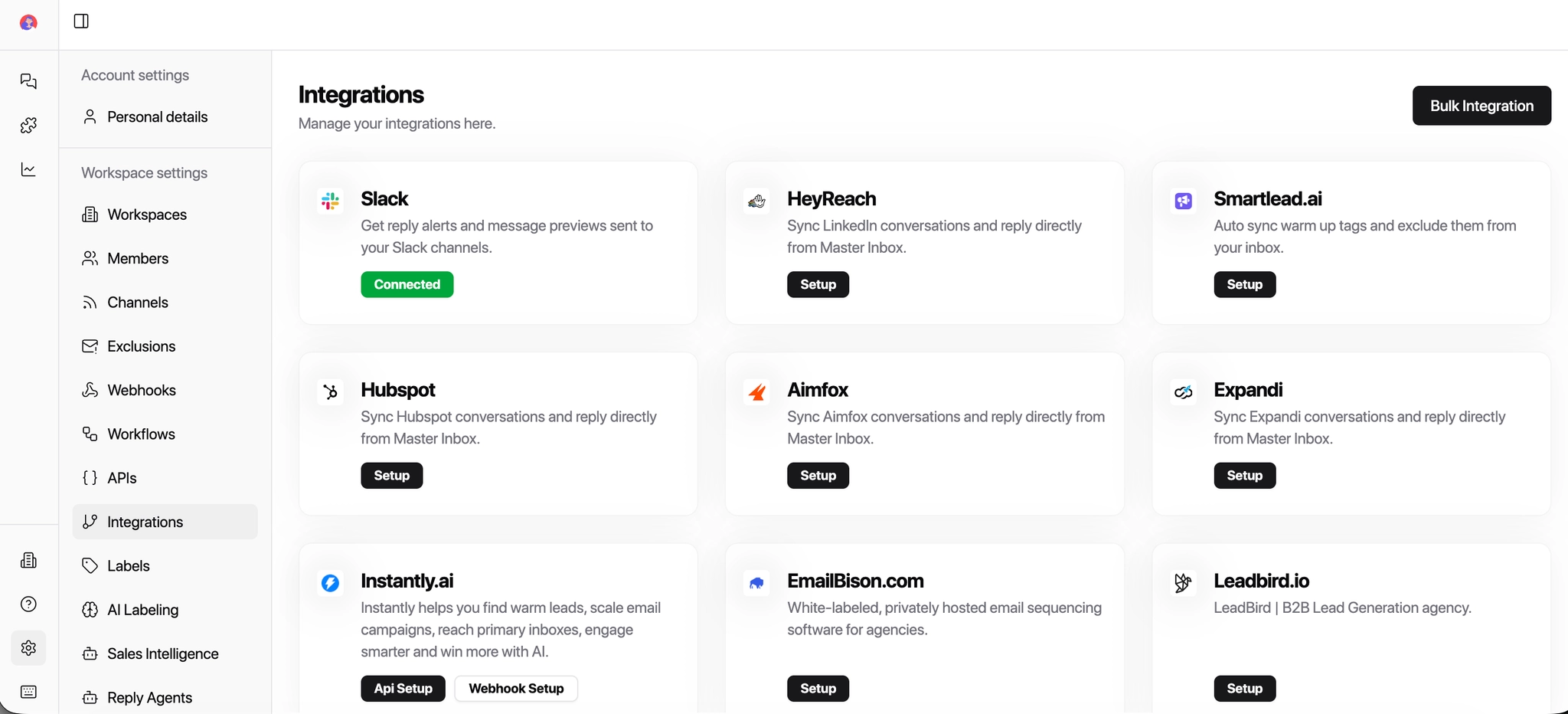
In MasterInbox, navigate to Integrations and click on SmartLead
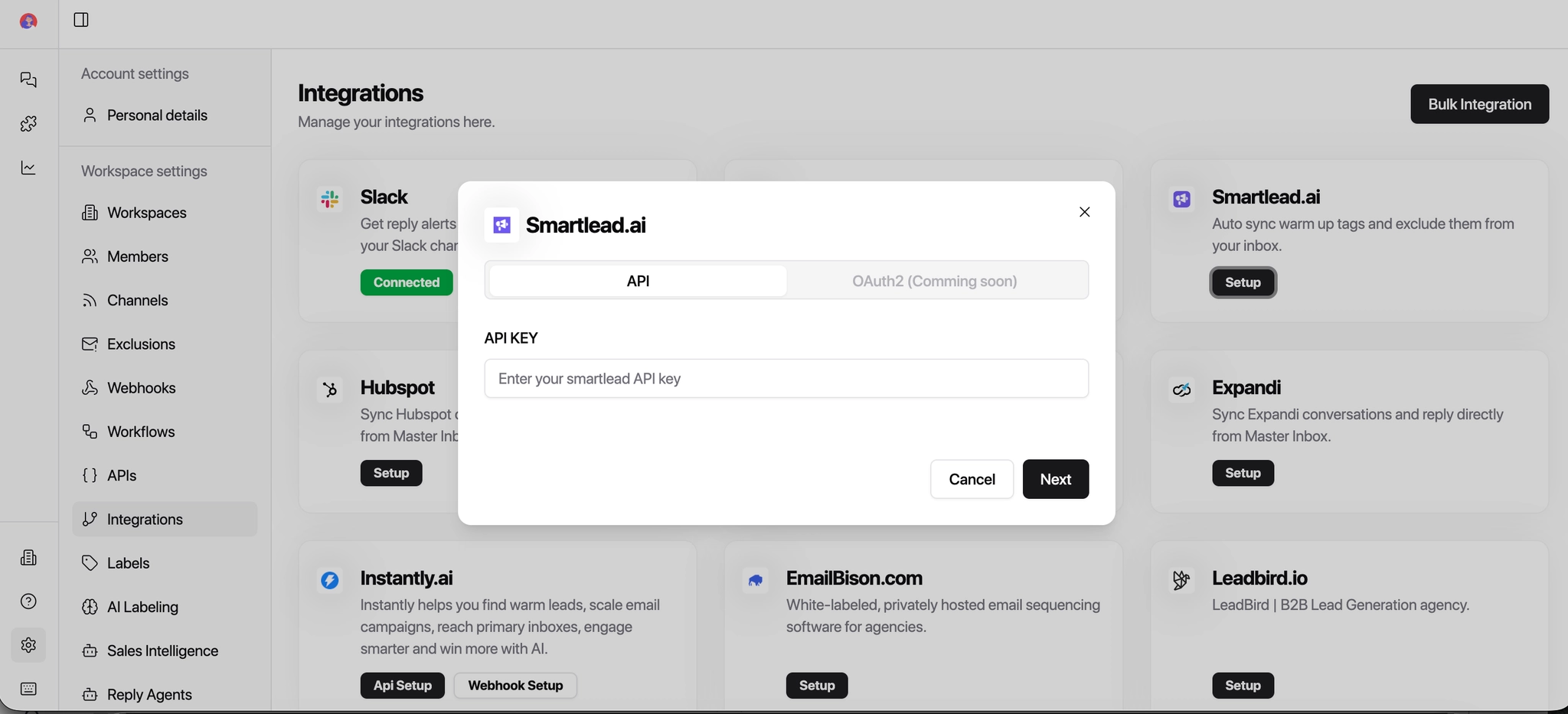
Step 2 — Add Your API Key
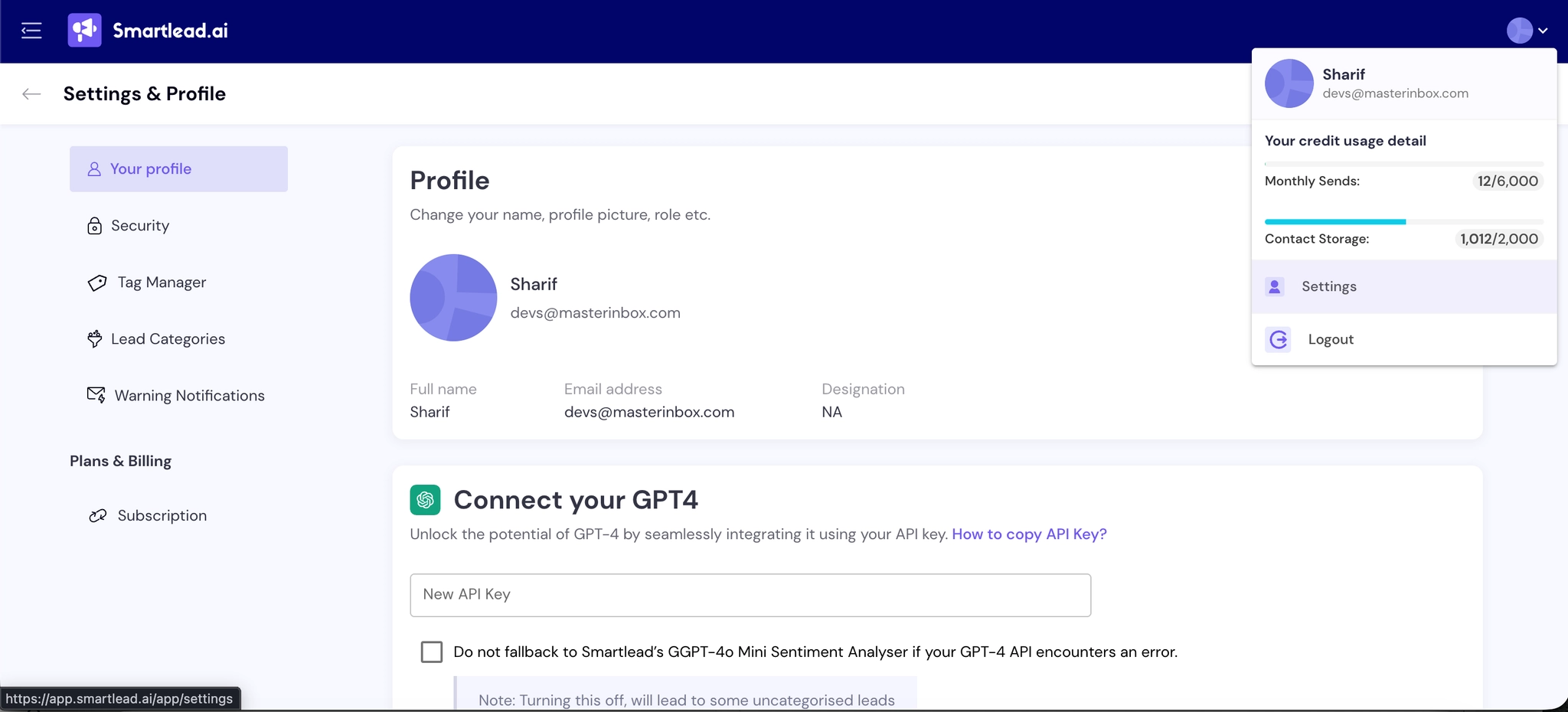
Log in to your SmartLead account
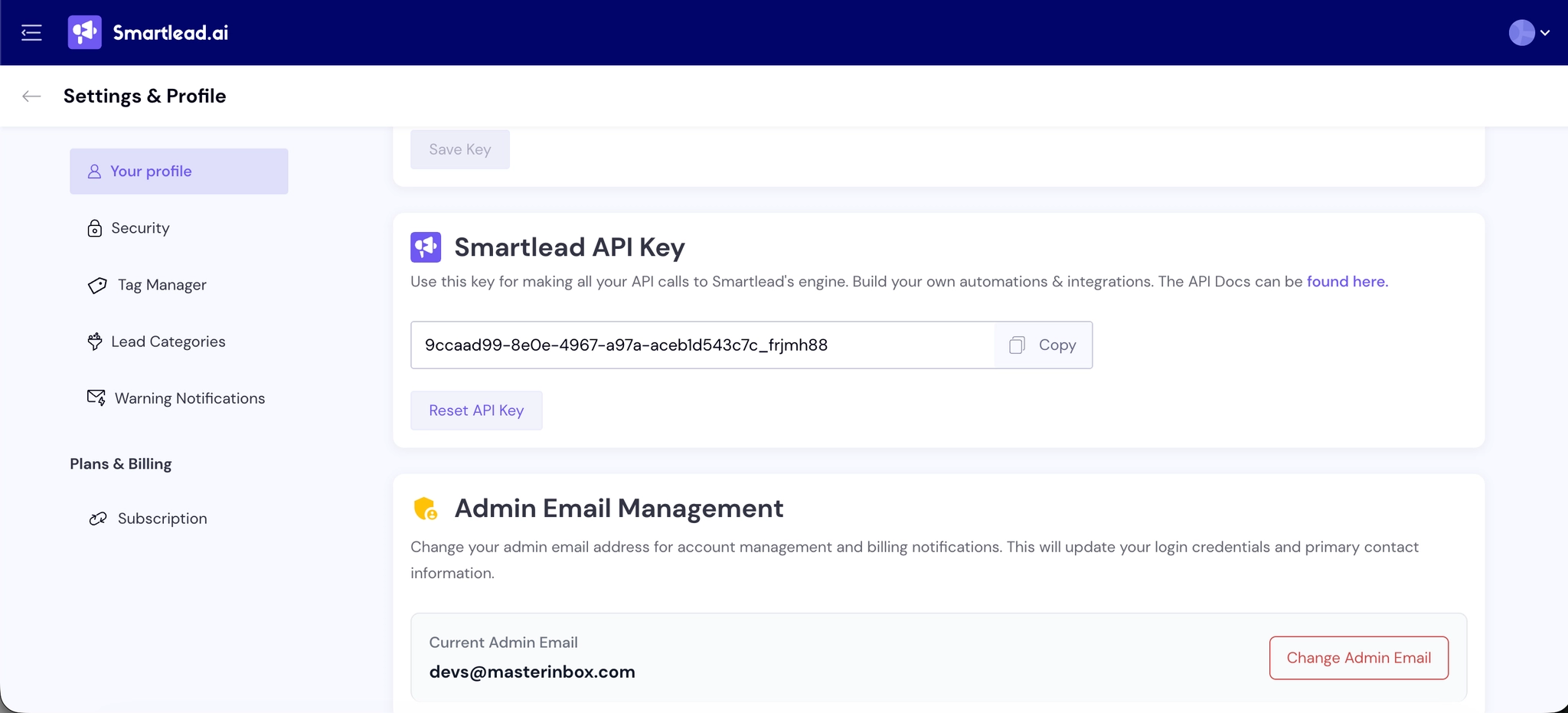
Go to Settings → API Key
Copy your API Key
Paste it into MasterInbox
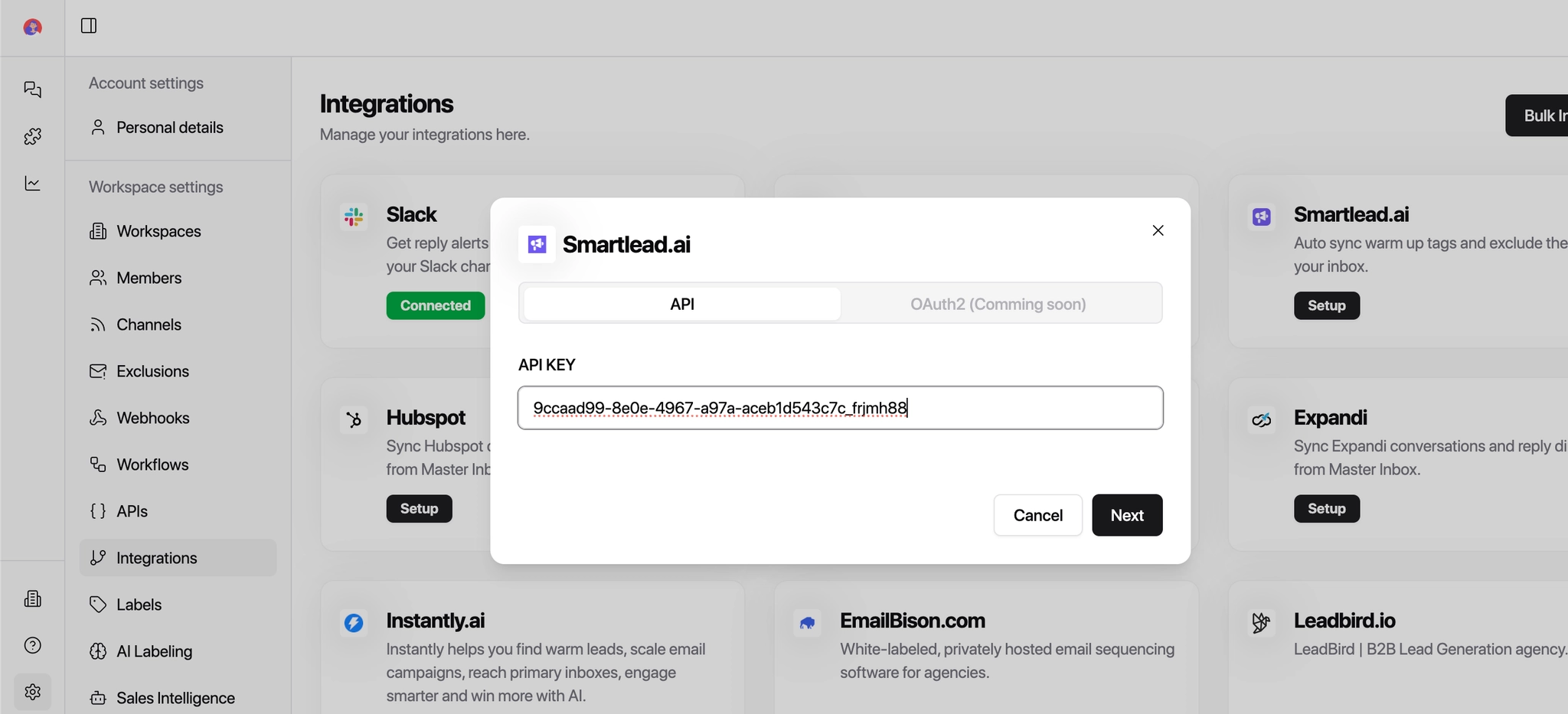
Step 3 — Select a Client Account
Choose the client account you want to connect with MasterInbox
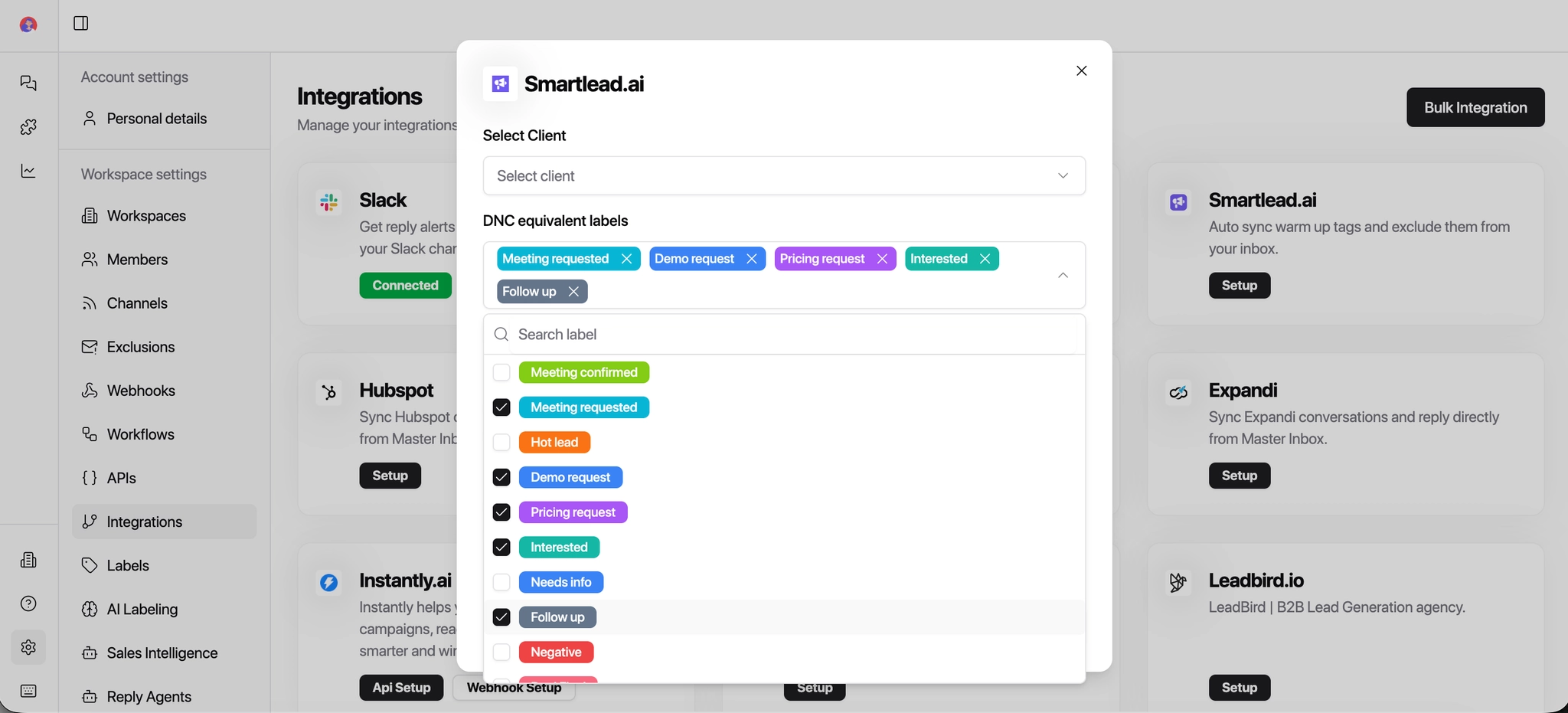
Step 4 — Configure DNC Settings
Select the DNC (Do Not Contact) lists you want to apply
What is DNC and how it works:
This setting makes sure that anyone marked as Do Not Contact is never emailed again.
If a prospect is added to a DNC list in SmartLead or MasterInbox, MasterInbox will automatically stop messages from being sent to them.
Why this is important for agencies:
Prevents accidentally emailing opted-out prospects
Protects your sender reputation
Keeps you compliant with client rules and regulations
Avoids awkward or risky follow-ups
Example:
If a prospect replies “Please don’t contact me again” and is added to a DNC list in SmartLead, MasterInbox will recognize this and make sure no future campaigns or replies reach them
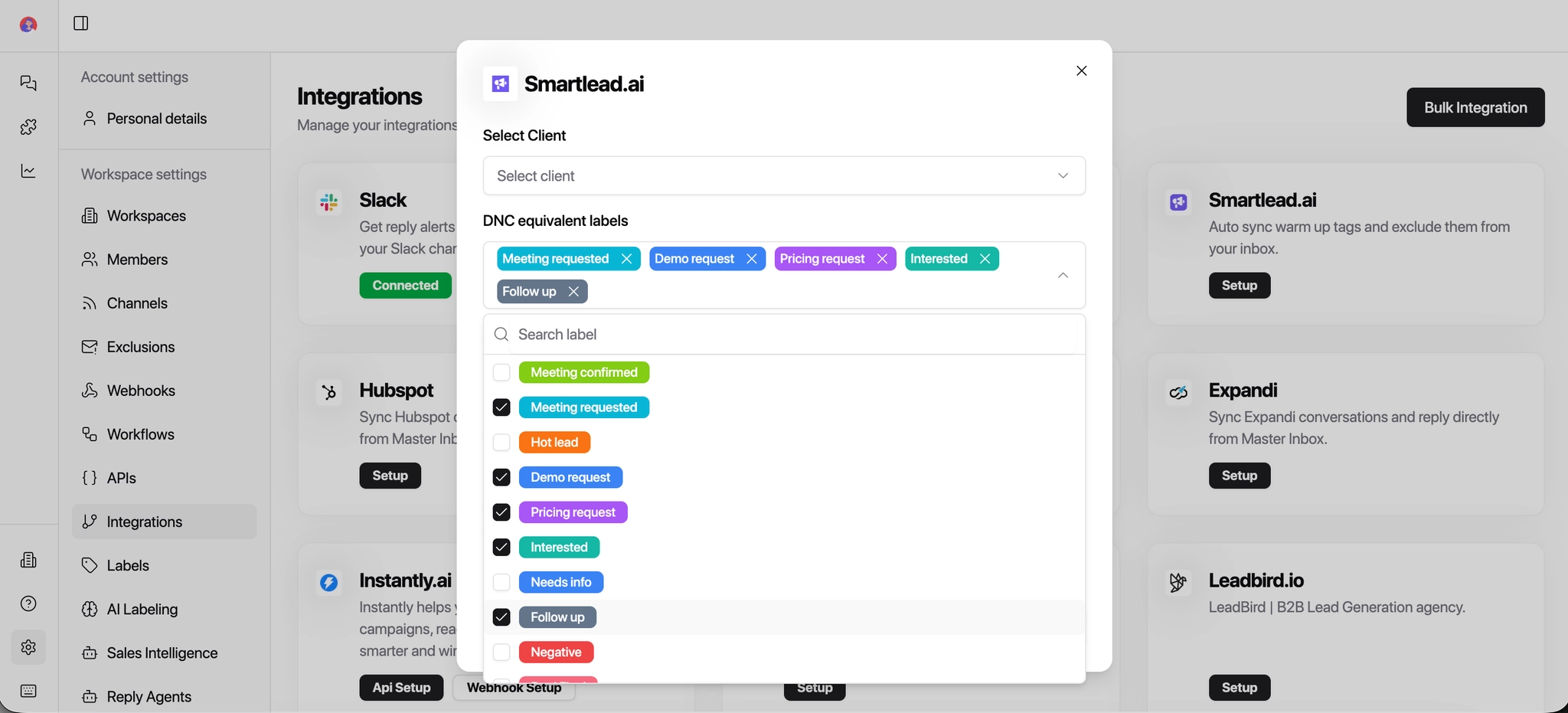
Step 5 - Set Exclusive Tags
Exclusive Tags let you control exactly which contacts are synced between SmartLead and MasterInbox.
When this is enabled, only prospects with the selected tags will sync.
Everyone else is ignored.
Think of it as a filter at the door.
Why this is useful for agencies:
Prevents clutter from syncing every lead
Keeps inboxes clean and focused
Helps manage multiple clients and campaigns safely
Avoids mixing test leads, warmups, or internal contacts with real prospects
Example use cases:
Agency with multiple clients
Tag prospects as
Client A,Client BEnable Exclusive Tags
Select only
Client A👉 Only Client A’s prospects sync into MasterInbox
SDR / BDR team
Tag prospects as
Hot,Warm,ColdEnable Exclusive Tags
Sync only
Hot👉 Team focuses only on high-intent replies
Campaign-specific syncing
Tag prospects as
Webinar,Cold Email,LinkedInEnable Exclusive Tags
👉 MasterInbox only shows replies from the campaign you care about
Best practice:
Use clear, consistent tags
Avoid syncing everything by default
Turn this ON when handling multiple campaigns or clients
Step 6 — Sync Labels
You have two toggles here:
SmartLead → MasterInbox: Syncs labels from SmartLead into MasterInbox
MasterInbox → SmartLead: Syncs labels created or updated in MasterInbox back into SmartLead
Important — only enable one at a time.
Which one you enable depends on where your labeling happens:
If you're using AI labeling on MasterInbox → enable MasterInbox → SmartLead
If you're doing your labeling inside SmartLead → enable SmartLead → MasterInbox
Step 8 — Configure Prospect Sync Options
Enrich Prospect: When toggled ON, MasterInbox will automatically fetch additional information about your prospects from SmartLead. This includes any custom fields you've added in SmartLead — all of this data will appear in the side panel inside MasterInbox.
Campaign Data: When toggled ON, the campaign name will sync from SmartLead into MasterInbox.
If you work with overlapping leads across multiple clients, it's recommended to keep Campaign Data turned OFF. This helps avoid confusion when the same prospect appears in different client campaigns.
Enabling these ensures that all relevant prospect and campaign insights are always up-to-date in both tools.
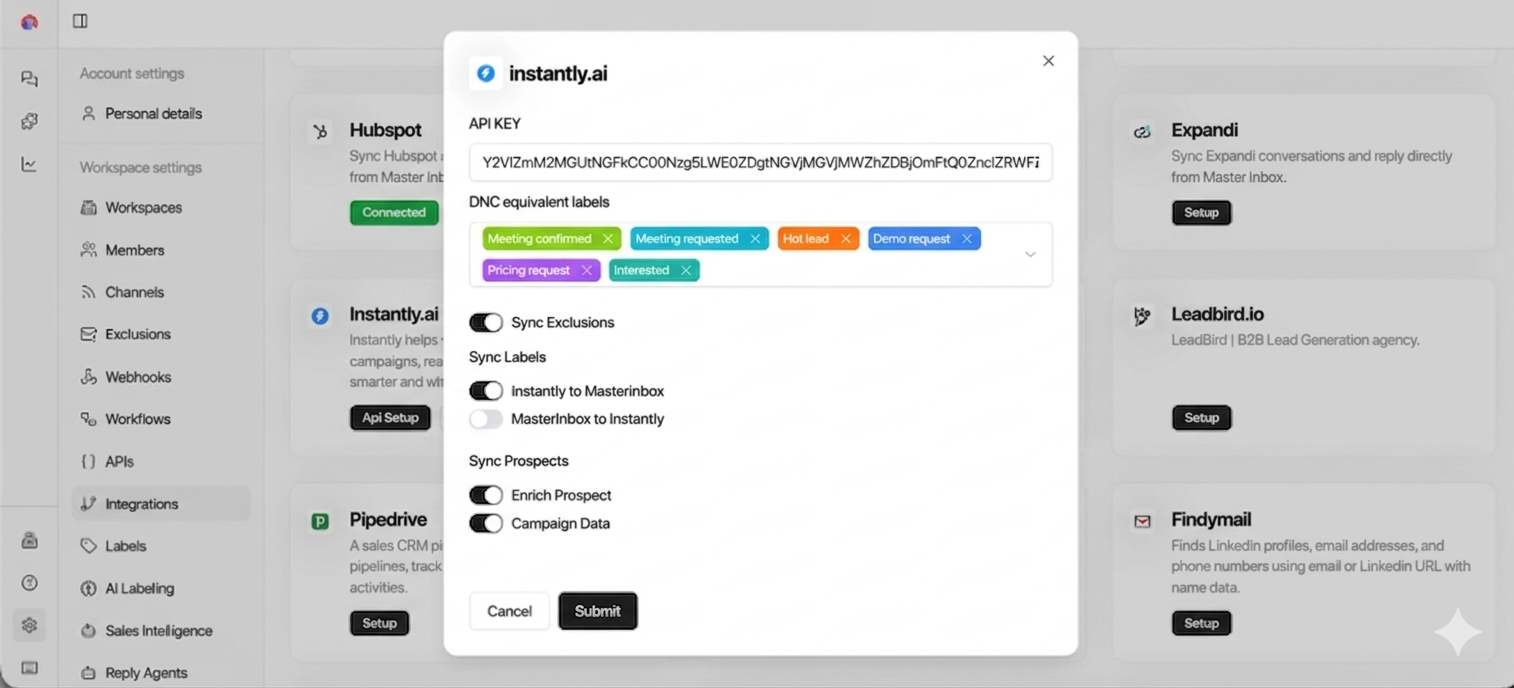
Step 9 - Submit to Integrate
Once all toggles and settings are configured, click Submit to complete the integration.
Your Smartlead account is now connected. Replies from your Smartlead campaigns will start syncing into Master Inbox automatically — with your DNC rules, Exclusive Tags, label logic, and prospect settings all applied from the start.